Need to import leads into Salesforce? This step-by-step guide walks you through uploading a CSV file, choosing how Salesforce handles the imported records, mapping your lead fields, and starting the import.
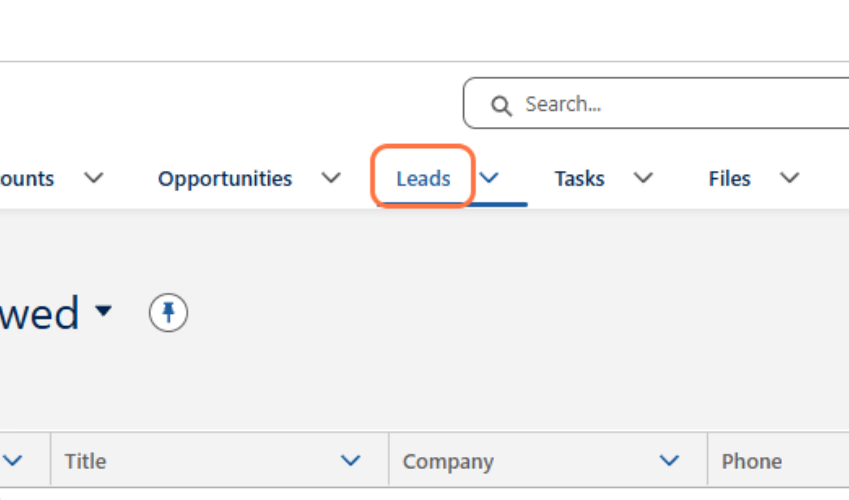
1. Open the Leads tab
Click on Leads.
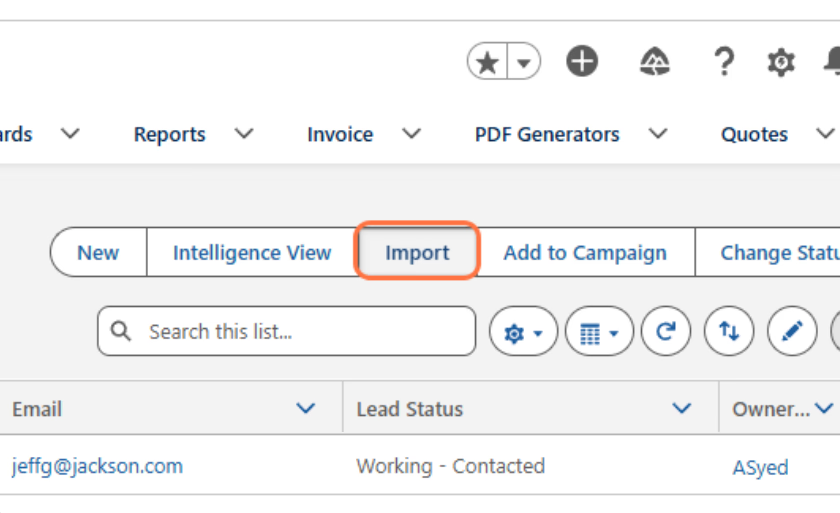
2. Start a lead import
Click on Import.
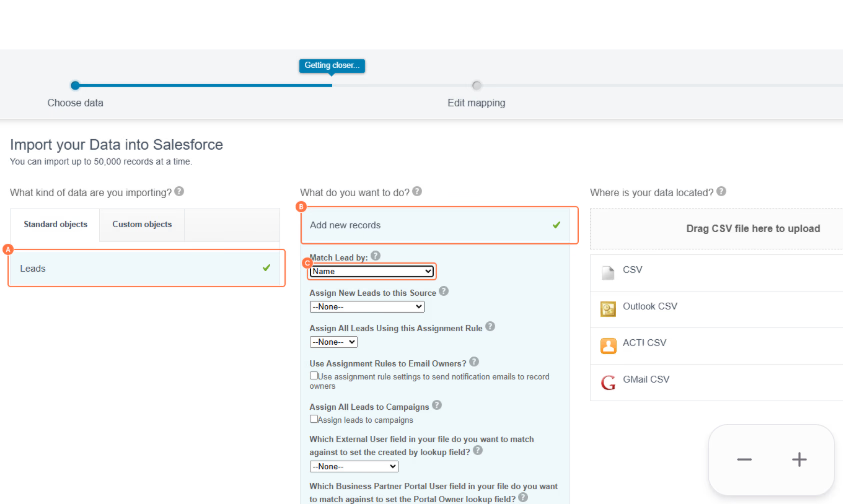
3. Choose how to import the leads
A. Select Leads.
B. Select Add new records.
C. Select an option from the Match Lead by dropdown.
Choose how Salesforce should identify matching leads during the import.
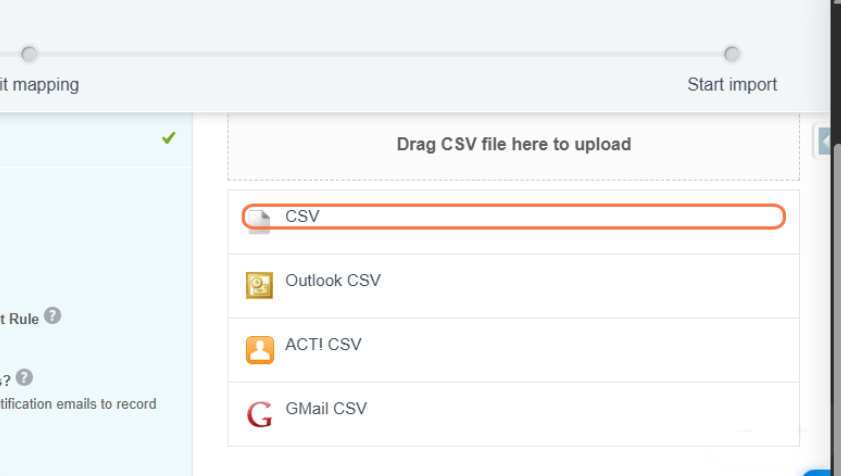
4. Select CSV as the data source
Click on CSV.
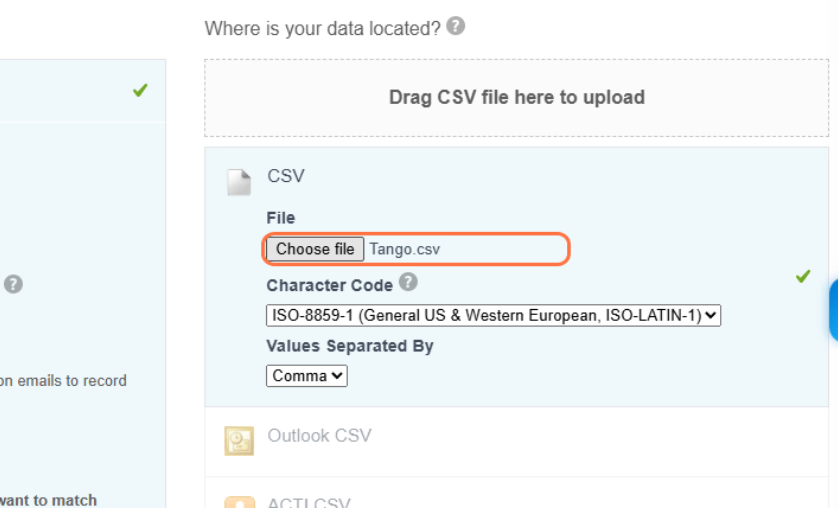
5. Select the CSV file
Click on Choose file and select the CSV file that contains the leads you want to import.
6. Continue to field mapping
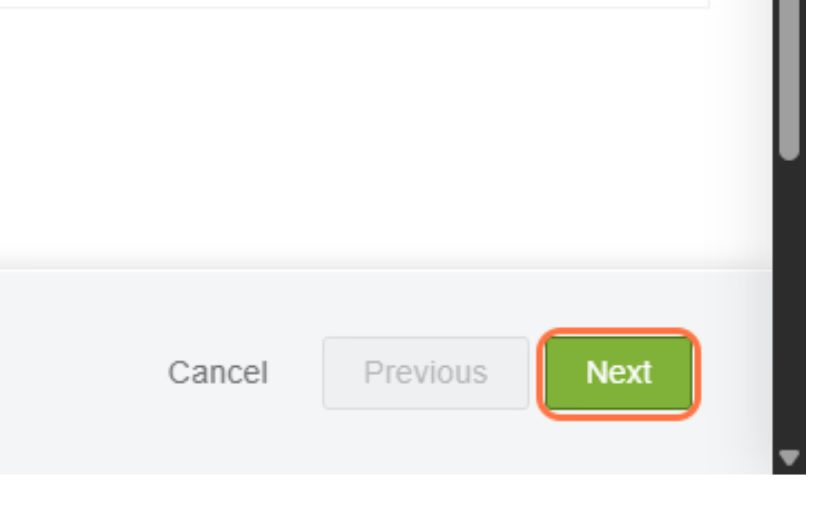
Click on Next.
7. Map any unmapped fields
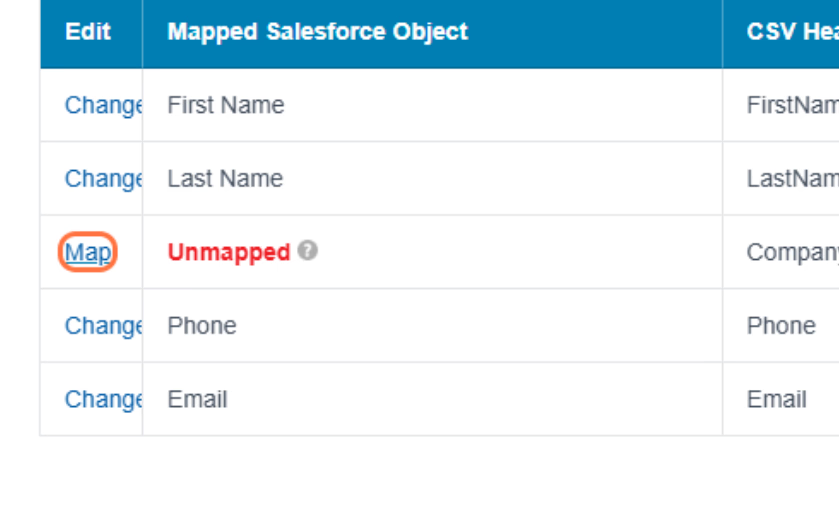
Click on Map next to an unmapped field.
Salesforce automatically maps matching fields when possible. In this example, the Company field needs to be mapped manually.
8. Select the corresponding Salesforce field
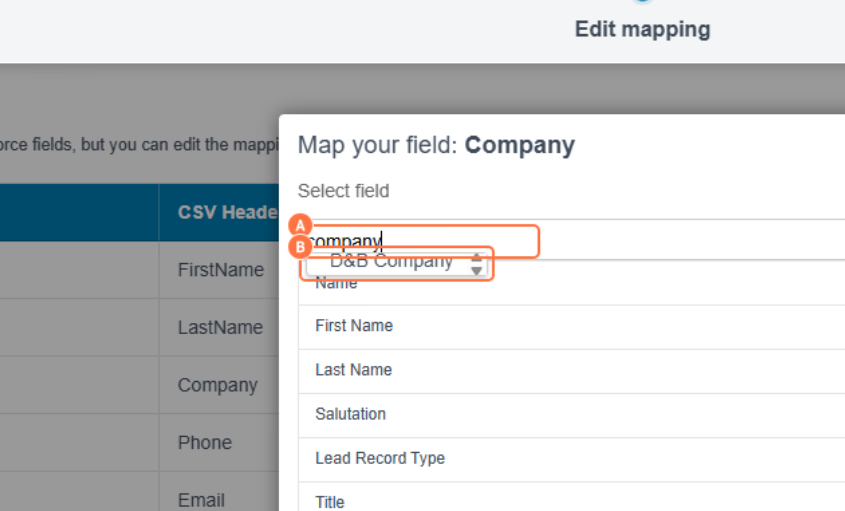
A. Type Company in the search field.
B. Select Company.
9. Confirm the field mapping
Click on Map.
10. Continue to the import
Click on Next.
11. Start the import
Click on Start Import.
12. Confirm the import
Click on OK.
Well done! You've successfully started importing leads into Salesforce. You can review the import results to confirm your lead records were imported successfully.