The best SharePoint alternative for on-screen work instructions

SharePoint stores your docs. Tango puts them to work.
See why teams choose Tango to automatically capture processes and deliver step-by-step work instructions employees can follow without leaving their workflow.
Tango logo and Scribe logo with a connecting line between them, surrounded by question marks.
Soft peach background with curved orange lines and minimalist designSoft pink background with a curved orange-red line

Tango and SharePoint strengths

SharePoint centralizes company documentation and internal resources. Tango delivers on-screen work instructions inside the tools employees already use.


Quickly capture process guides with Click-to-Capture and Voice Transcription
Watch AI title your guide and write step descriptions in real time
Capture multiple paths in a single guide without rebuilding separate workflows
Automatically detect and redact sensitive information
Play button icon
Turn any workflow into an embeddable video that automatically updates with a single click
Pin guides and tips directly inside the software employees use every day
Show users exactly what to do with in-app walkthroughs
Person icon
Translate workflows instantly for global teams
Intranet sites and pages for communicating news, policies, and company updates
Shared document libraries with role-based permissions and access controls
Person icon
Custom internal portals and department sites for teams across your organization
Workflow automation and approvals through Microsoft Power Automate
Native integration across Microsoft 365 apps including Teams, Word, and Excel
Microsoft Copilot AI search and answers across company content
Deep purple abstract background with curved layered geometric shapes
Why Choose Tango?

You care about process adoption as much as process documentation.

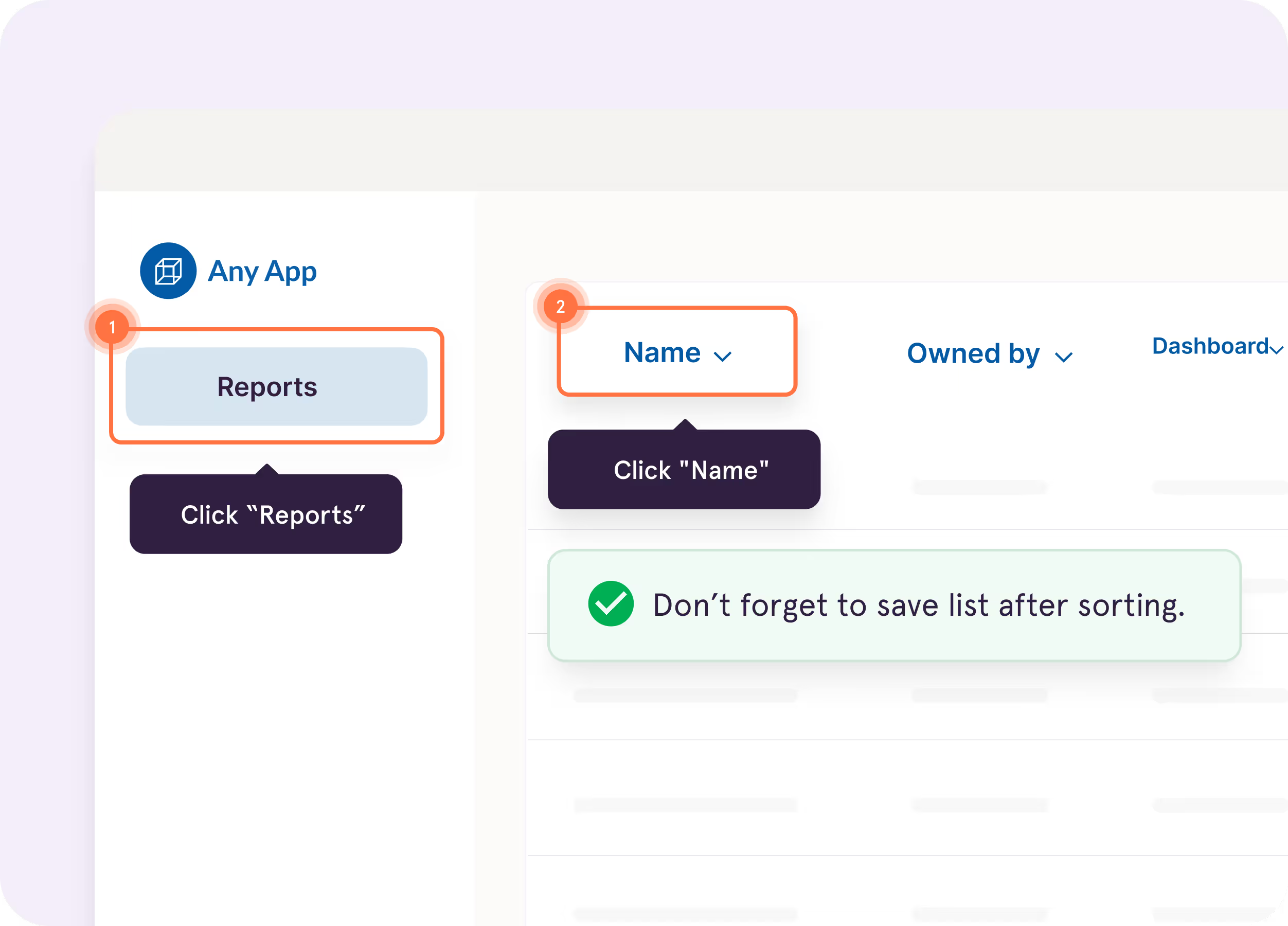
Tango Guide Me

Show users exactly where to click so they
can easily follow processes across applications

Support multiple workflow paths in a single guide with Workflow Branching
Screenshot of a guide interface titled ‘Creating a Lead in Salesforce: Step-by-Step Guide,’ with options for scrolling and opening the guide, next to text highlighting Tango Capture and Tango Embed features
Blurred white and gray document or webpage with minimal content
Computer screen showing Calendly interface for scheduling discovery calls

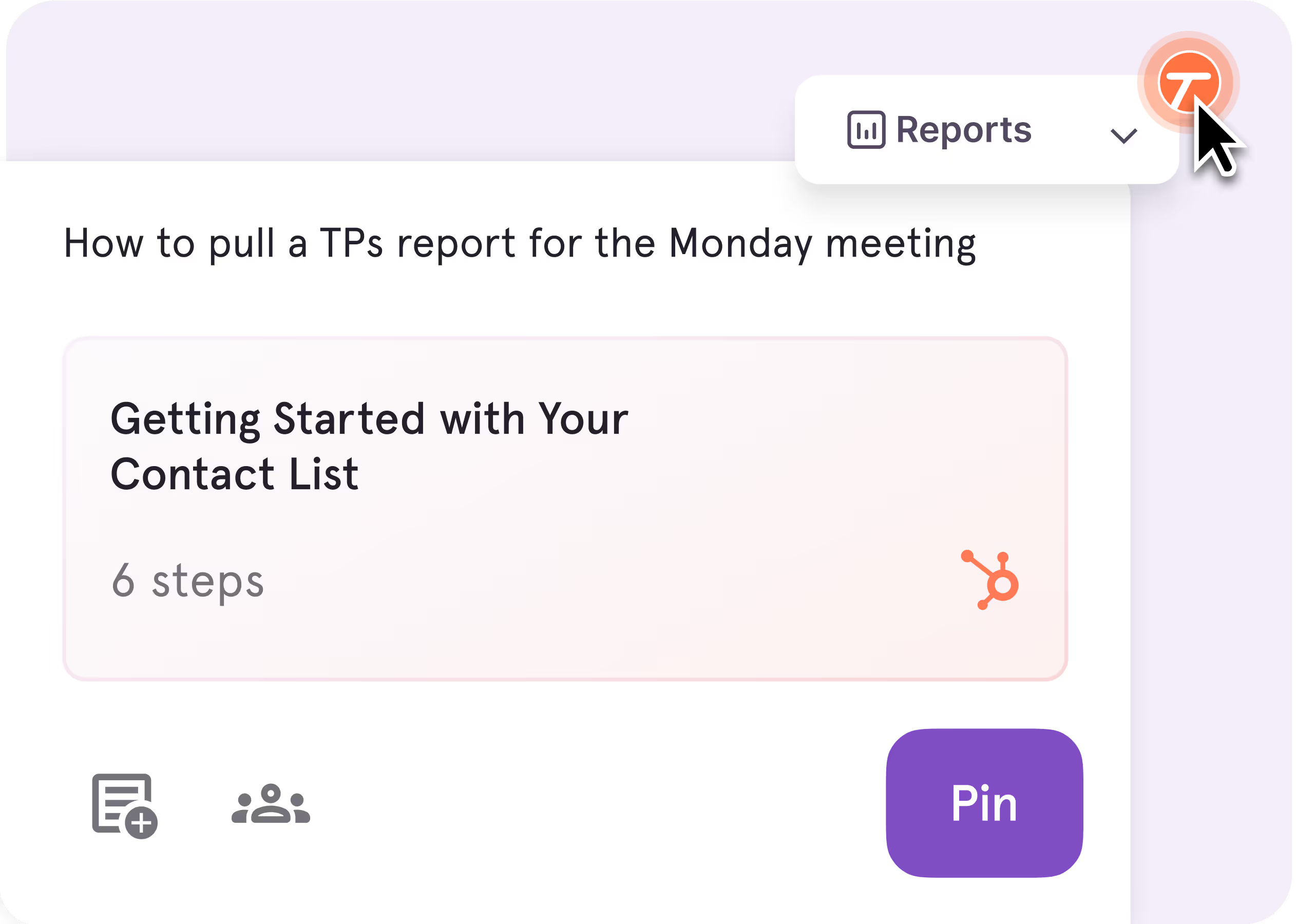
Tango Pins & Nuggets

Pin guides inside your work apps right where employees will need them

Easily leave tooltips inside your apps for tips, watchouts, and links to additional resources
Screenshot of a guide interface titled ‘Creating a Lead in Salesforce: Step-by-Step Guide,’ with options for scrolling and opening the guide, next to text highlighting Tango Capture and Tango Embed features
Blurred white and gray document or webpage with minimal content
Computer screen showing Calendly interface for scheduling discovery calls

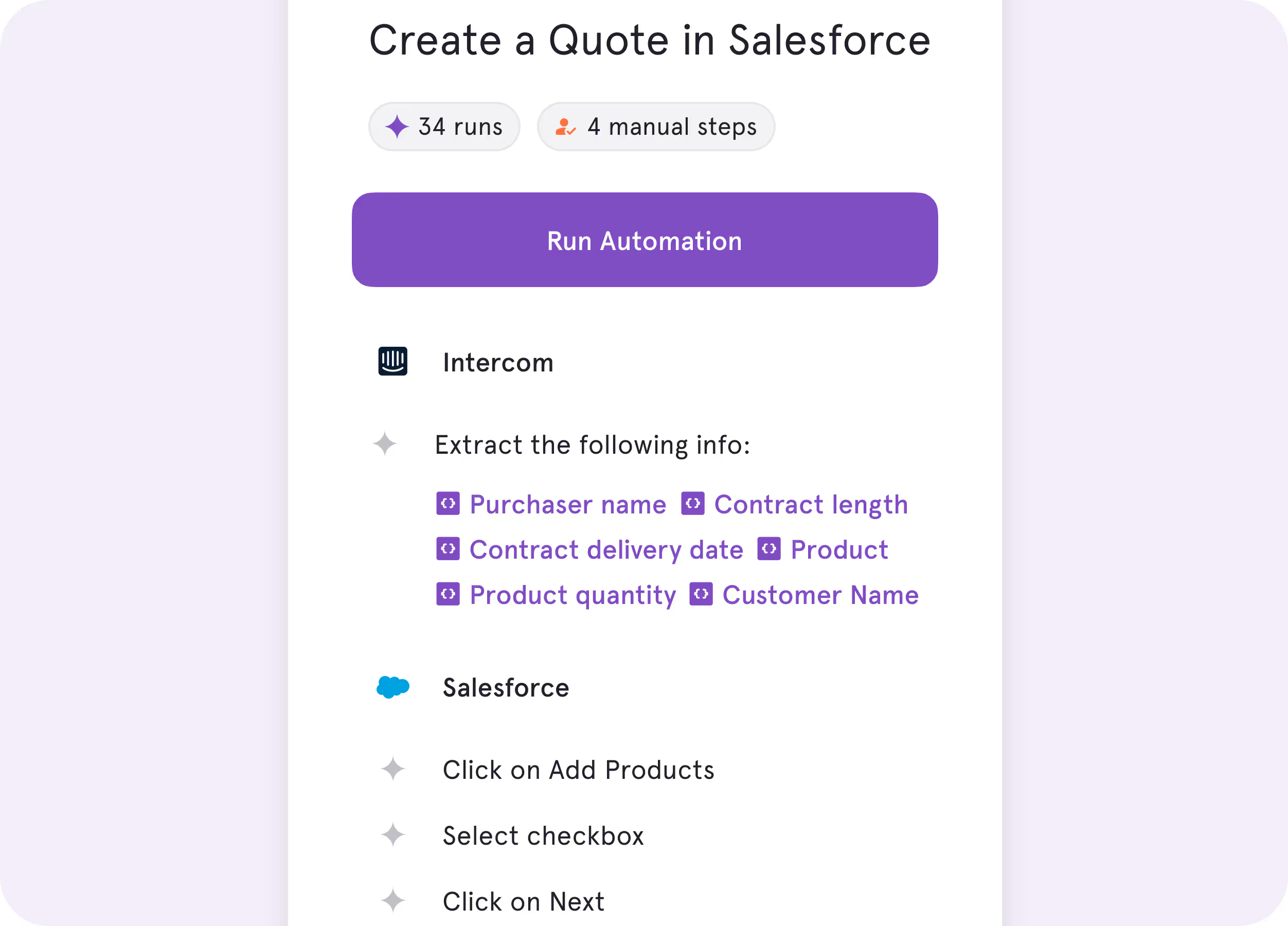
Tango Agents

Complete repetitive steps for employees with real-time automation
Screenshot of a guide interface titled ‘Creating a Lead in Salesforce: Step-by-Step Guide,’ with options for scrolling and opening the guide, next to text highlighting Tango Capture and Tango Embed features
Blurred white and gray document or webpage with minimal content
Computer screen showing Calendly interface for scheduling discovery calls
No one wants to spend 15 minutes reading about a process when they could use that time to actually do the process.
Tom | Learning & Development Manager
Decorative quotation mark iconDecorative quotation mark icon
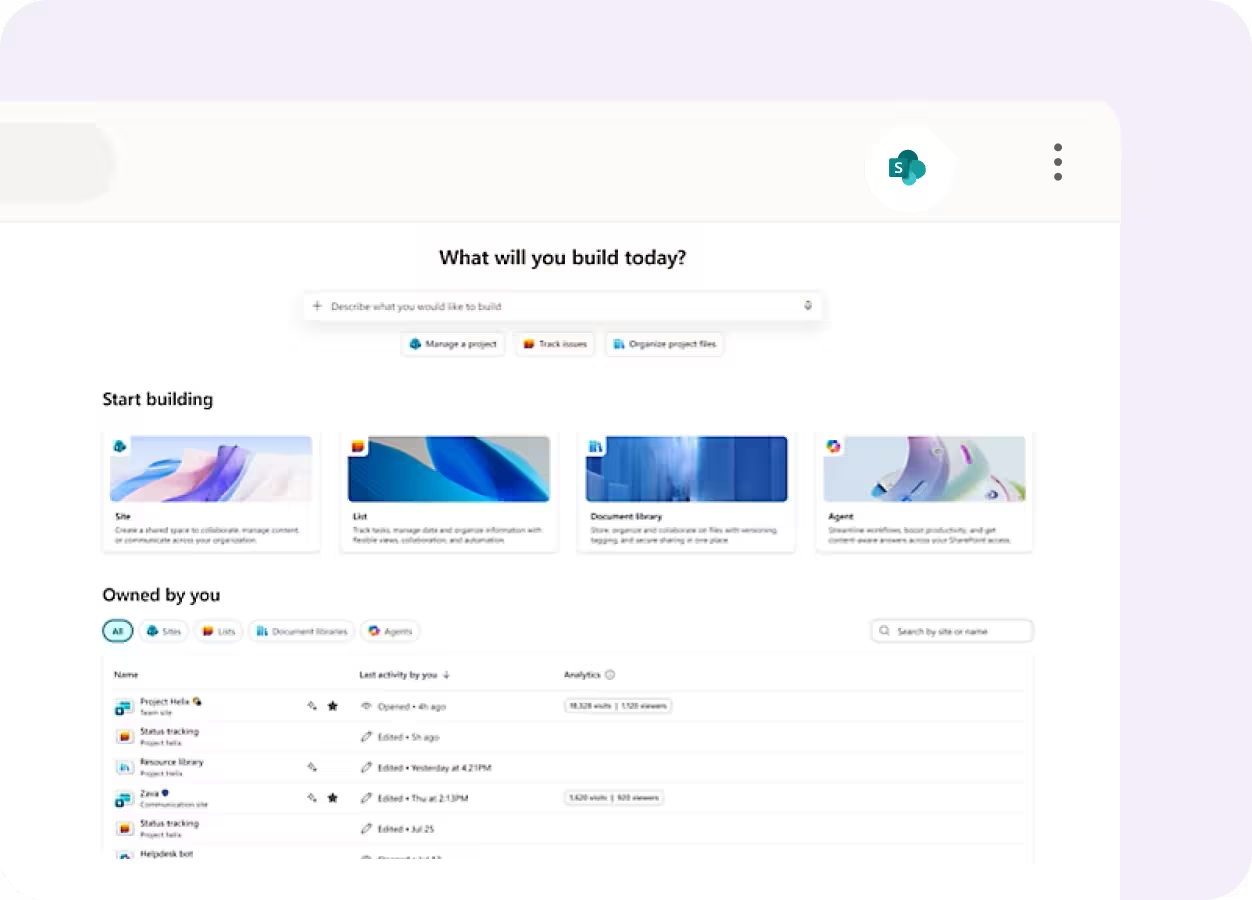
Why Choose Sharepoint?

You need centralized document management inside a Microsoft 365 environment.

Organize internal knowledge in hubs and intranet portals across your org
Screenshot of a guide interface titled ‘Creating a Lead in Salesforce: Step-by-Step Guide,’ with options for scrolling and opening the guide, next to text highlighting Tango Capture and Tango Embed features
Blurred white and gray document or webpage with minimal content
Computer screen showing Calendly interface for scheduling discovery calls

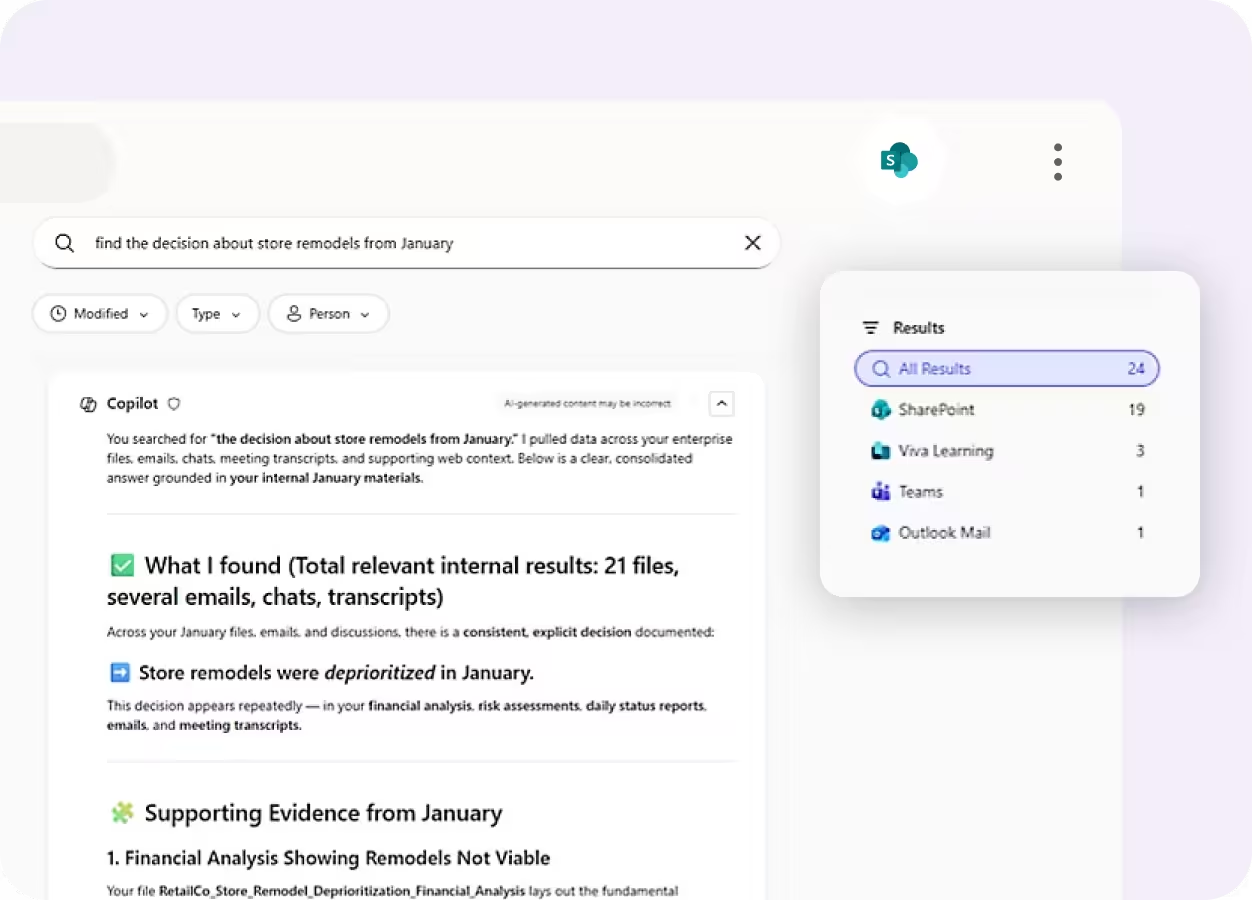
AI-powered search and knowledge retrieval across internal documentation
Screenshot of a guide interface titled ‘Creating a Lead in Salesforce: Step-by-Step Guide,’ with options for scrolling and opening the guide, next to text highlighting Tango Capture and Tango Embed features
Blurred white and gray document or webpage with minimal content
Computer screen showing Calendly interface for scheduling discovery calls

Key Differences

Both tools help teams document and share how work gets done. Here's how they deliver guidance differently.

Unique features

Once your processes are documented, where do employees go to get help?
SharePoint

Documentation lives in intranet portals, team sites, and shared document libraries employees search to find answers.

Tango

Guided walkthroughs surfaced directly inside the software where work happens.

User icon with workflow process steps and communication icon

End user experience

How will each tool help your end users get unstuck?
SharePoint

Employees leave their workflow to search through documentation, policies, and internal resources.

Tango

In-app walkthroughs, tips, and embedded guidance help users complete work in real time.

Orange cube connected to location pin by curved path

Product roadmap

Where is each team investing to stay ahead?
SharePoint

AI-powered search, collaboration, and knowledge management across the Microsoft 365 ecosystem.

Tango

In-app guidance and real-time automation that helps employees complete work faster and more consistently.

What’s in it for you

What kind of business impact will you be able to drive?
SharePoint

Centralized document governance, compliance, and knowledge management.

Tango

Document processes faster and improve process adoption, software ROI, and productivity.

In six months with Tango, we improved access
to knowledge by 20% and employee satisfaction by 25%.
Emily | Senior Product Development Manager
Decorative quotation mark iconDecorative quotation mark icon

What do Tango and SharePoint have in common?

Documentation

Reusable templates for recurring processes and SOPs

AI assistance to speed up documentation

Sharing & Analytics

Invite others to edit and collaborate easily in a shared workspace

Share documentation through links, embeds, and exported content

Customize documentation to follow your brand guidelines

Integrate with 100s of tools (Microsoft Teams, Slack, Google Workspace, and more)

Access analytics on shared content engagement

Security & Admin

Role-based permissions and access controls

Streamline access with single sign-on (SSO)

Protect your data with SOC 2 Type II compliance

Compare Tango vs other popular tools

Jump to the comparison that's most relevant to you.

Blue cloud-shaped logo representing Salesforce company branding
Tango vs Scribe
Blue cloud-shaped logo representing Salesforce company branding
Tango vs Guidde
Blue cloud-shaped logo representing Salesforce company branding
Tango vs UserGuiding
Blue cloud-shaped logo representing Salesforce company branding
Tango vs Whatfix
Blue cloud-shaped logo representing Salesforce company branding
Tango vs Walkme
Blue cloud-shaped logo representing Salesforce company branding
Tango vs Loom
Our newest sales reps are correctly adopting our HubSpot
processes on their first day with Tango—much faster than previous
cohorts without it.
Tom | Sales Enablement Manager
Decorative quotation mark iconDecorative quotation mark icon

The GPS for processes

Top performing companies use Tango to accelerate knowledge sharing, process adoption, and software ROI.
Decorative quotation marks background graphicDecorative quotation marks background graphic

With Tango, I get to make learning software feel like the Cadillac experience.

Chad, Customer Success Leader

See Tango’s
Software Knowledge Layer in action

Orange and white stylized T logo with sparkle effects on pink background