Need to create a new Opportunity record in Salesforce? This step-by-step guide walks you through opening Opportunities, entering key opportunity details, selecting a stage, associating an account, and saving the record. Follow the instructions below to create and review a new Opportunity in Salesforce.
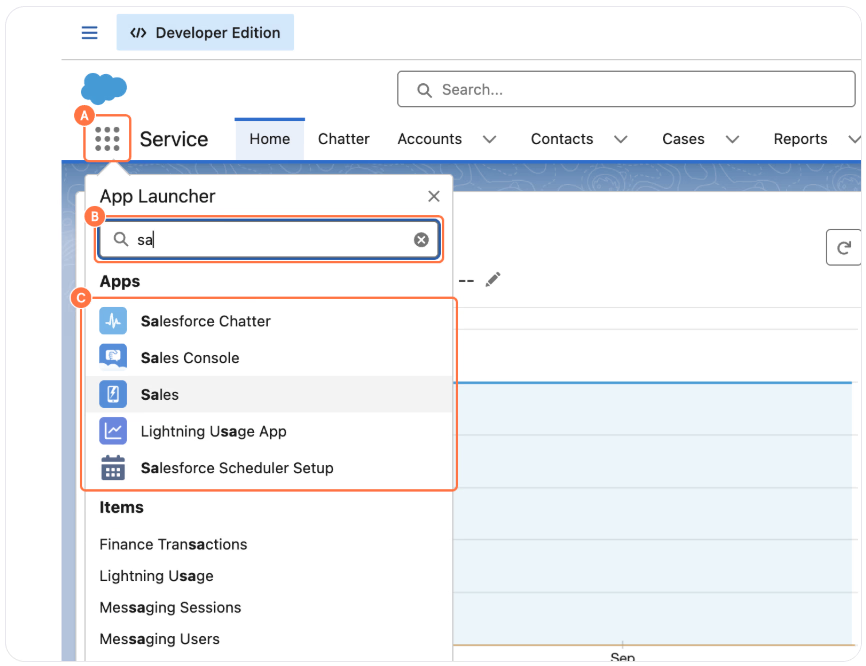
1. Open the Sales app
A. Click on App Launcher.
B. Type Sales in the Search apps and items field.
C. Select the Sales app.
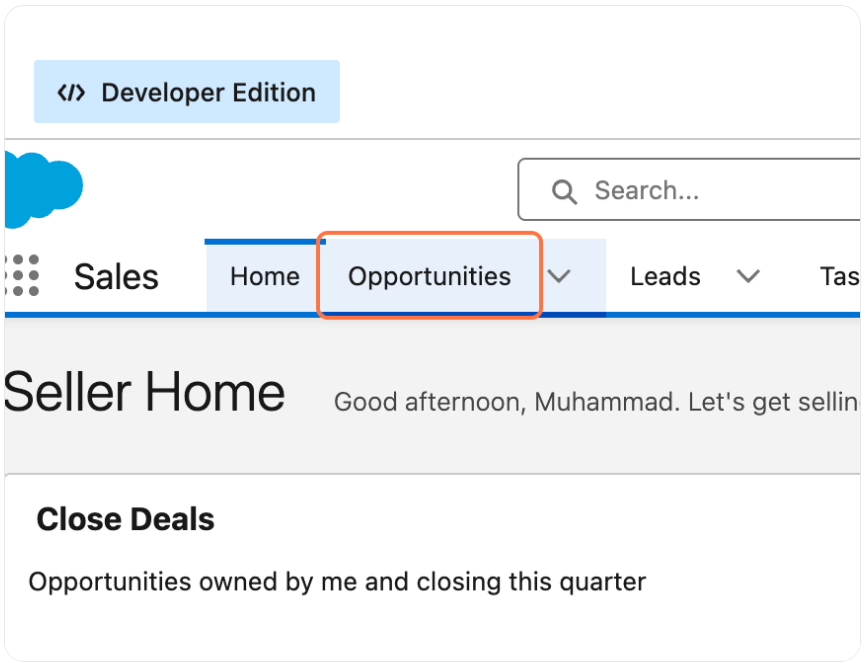
2. Open the Opportunities tab
Click on Opportunities.
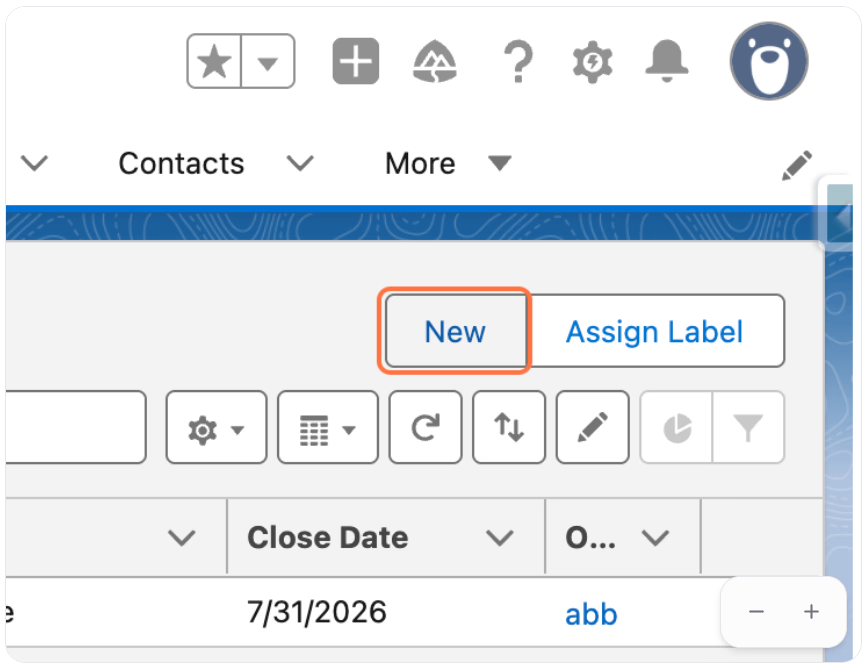
3. Create a new opportunity
Click on New.
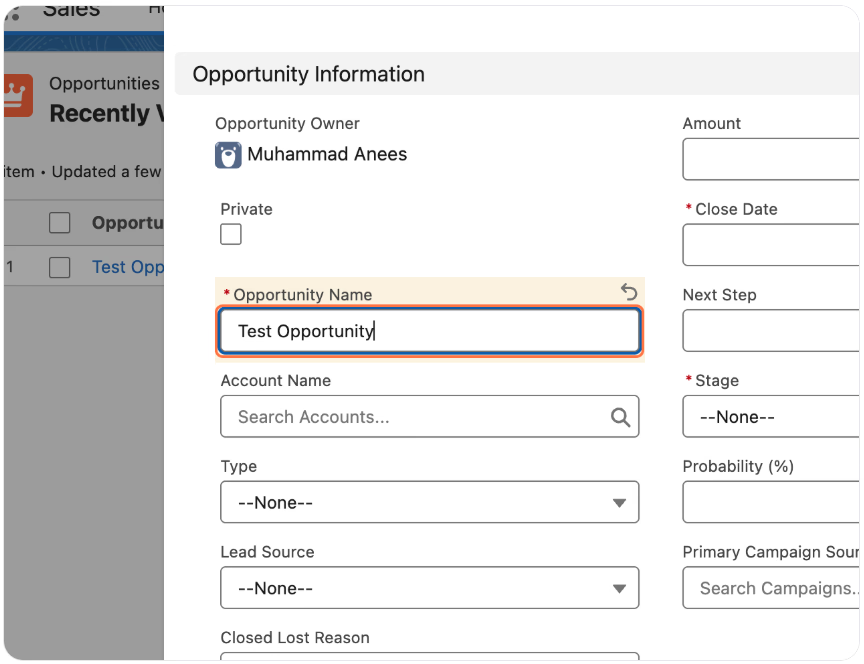
4. Enter the opportunity name
Enter a name in the Opportunity Name field that clearly identifies the opportunity. The Opportunity Name field is required.
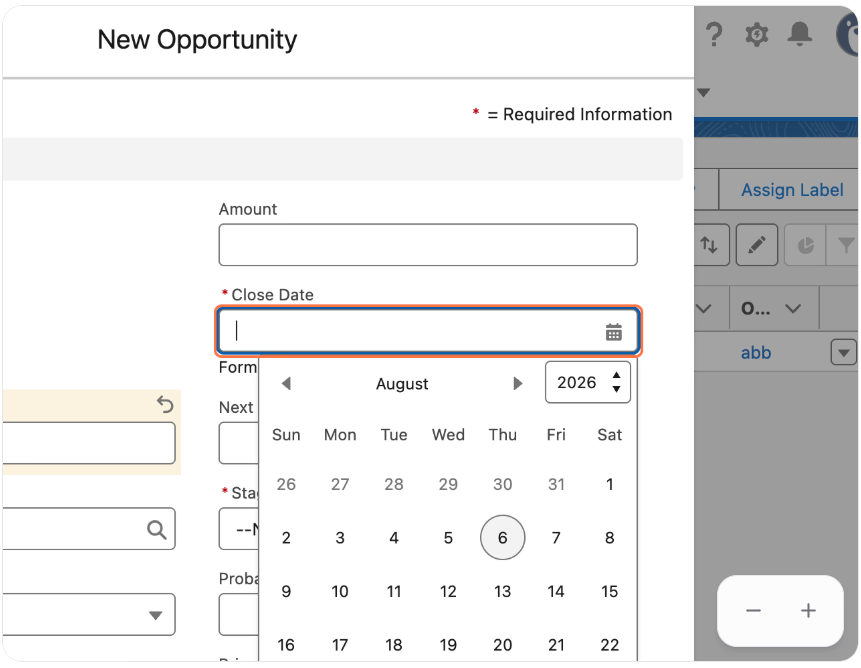
5. Select a close date
Select the Close Date for when you expect the opportunity to close. The Close Date field is required.
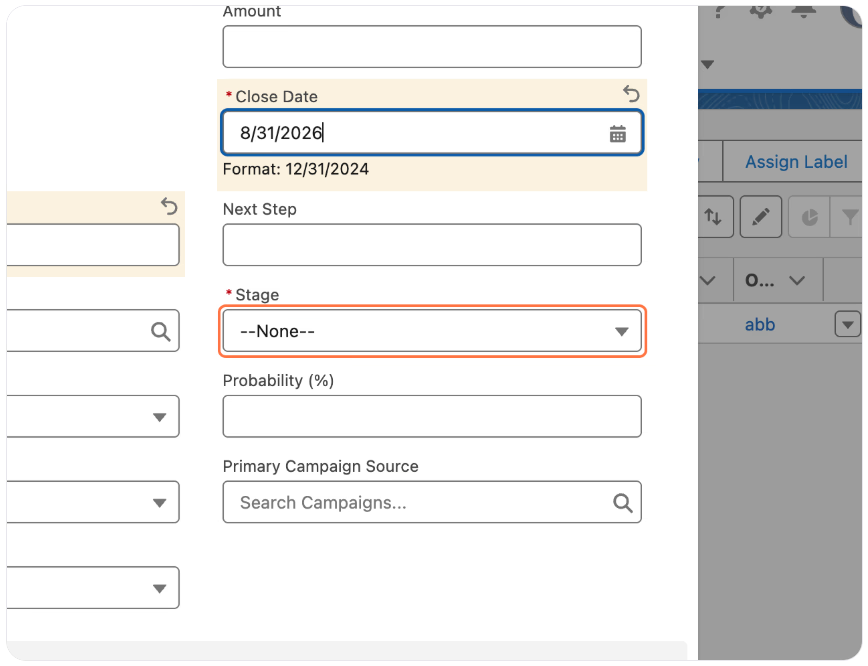
6. Open the Stage dropdown
Click on the Stage dropdown to view the available opportunity stages.
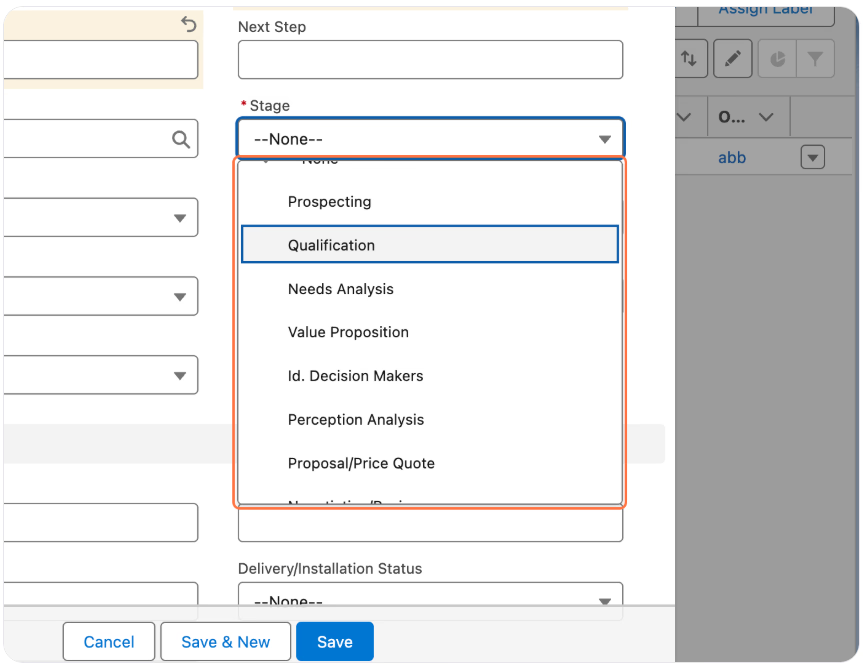
7. Choose the opportunity stage
Select the appropriate Stage for the opportunity (for example, Qualification). The Stage field is required.
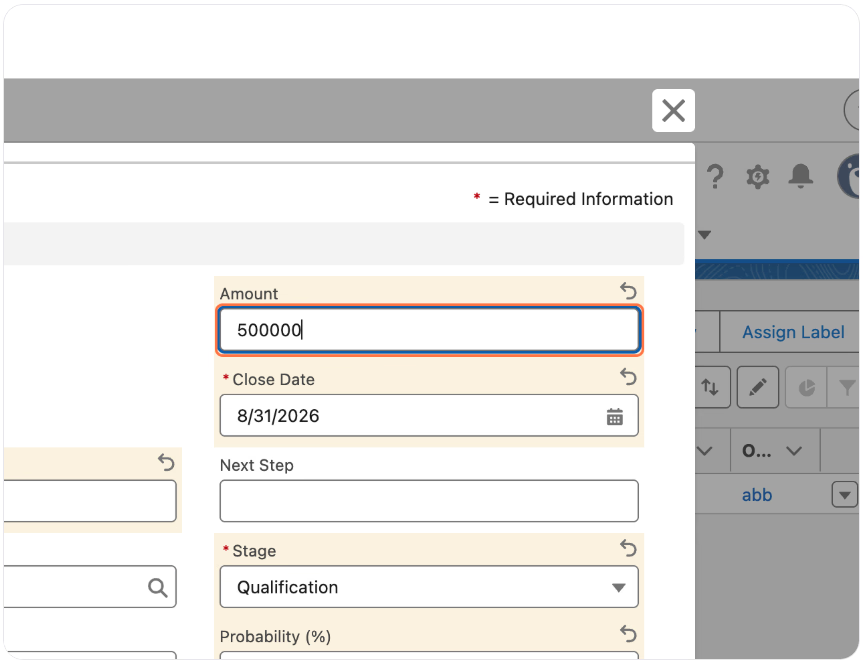
8. Enter the opportunity amount
Enter the estimated value of the opportunity in the Amount field.
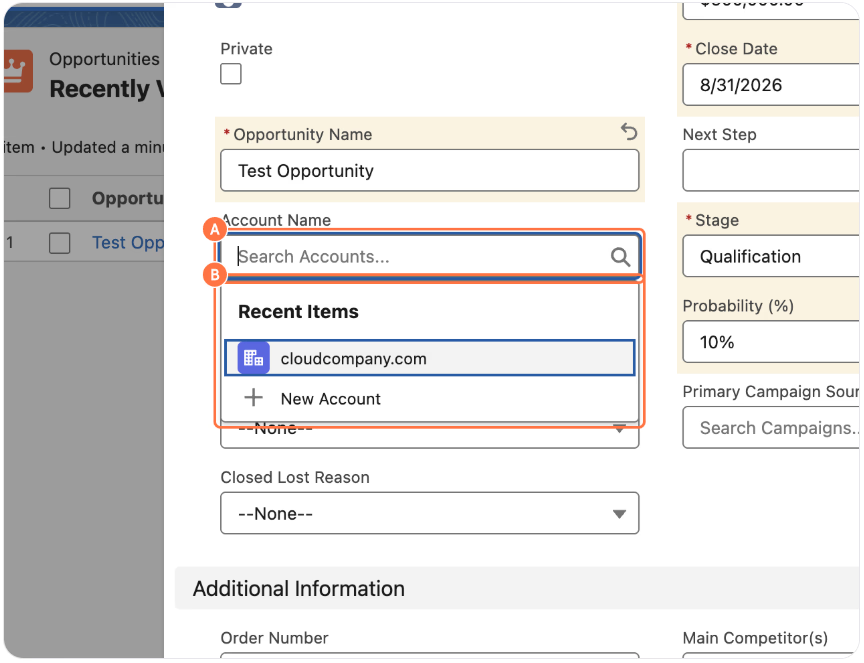
9. Associate the opportunity with an account
A. Type the account name in the Search Accounts field.
B. Select the appropriate Account Name.
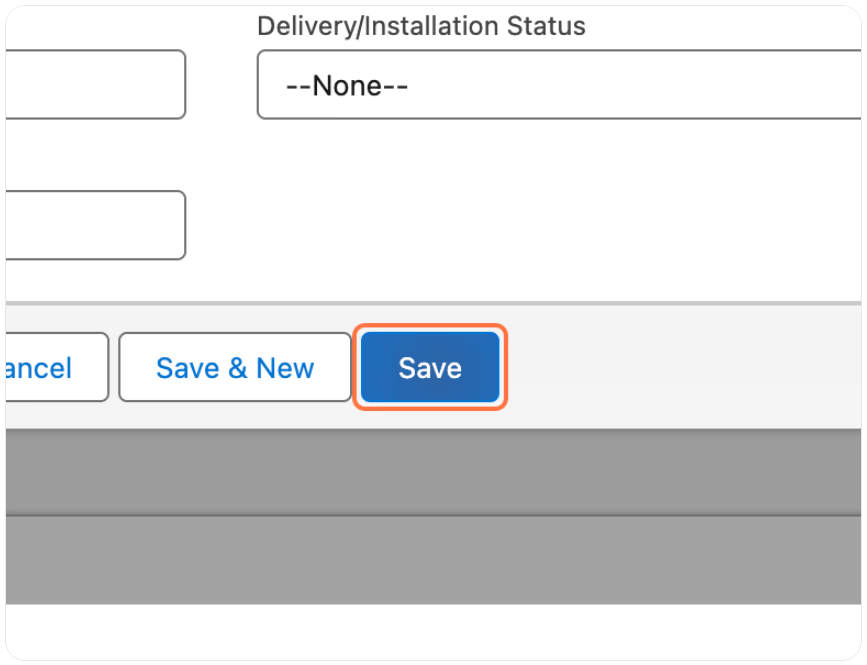
10. Save the opportunity
Click on Save to create the opportunity.
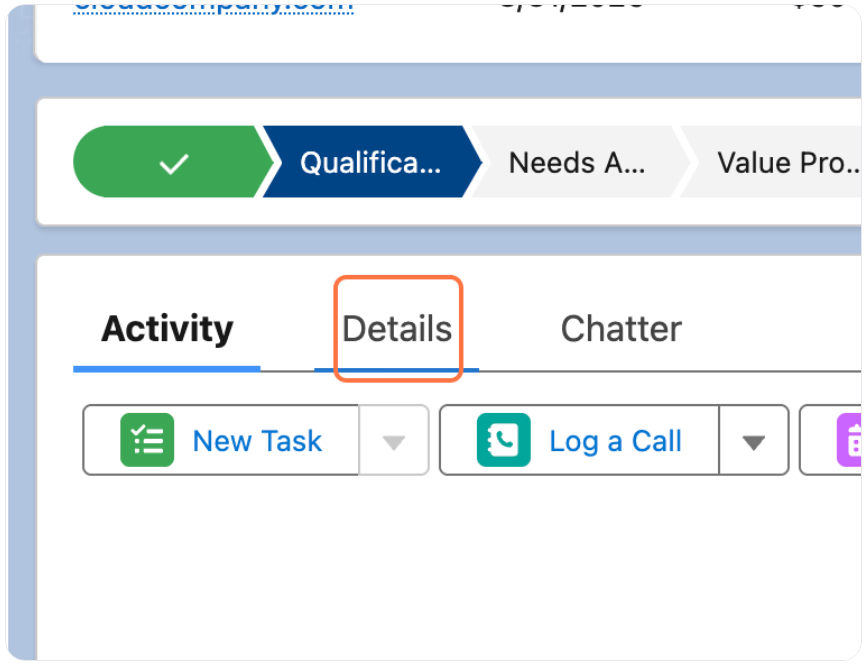
11. Review the opportunity details
Click the Details tab to review the information for the new opportunity.
Well done! You've successfully created an Opportunity in Salesforce. You can now update its details as the opportunity progresses through your sales process.