11 Best Tools to Create, Share & Manage Knowledge


Learning on the job doesn’t need to be half as hard as it often is. The key? Choosing the right knowledge sharing tools to make learning easier for everyone.
Trainers and managers want to unblock their teams, minimize interruptions, and free up time for strategic work. Individual contributors want to get unstuck fast, build autonomy, and show their impact. Without an effective knowledge sharing tool, no one is equipped to do their best work.
Finding the right mix of tools for your tech stack can increase knowledge transfer, build more institutional knowledge, and lead to fewer knowledge gaps. It can also quickly make documentation and collaboration easier, faster, and more fun. 🥳
Check out our list of the best knowledge sharing tools below to learn how each option can help you hit your goals. For consistency, we’ve included monthly pricing when billed annually for each tool.
1. Tango
Great for people who want to capture and access knowledge in the flow of work—and get stuff done without screen sharing. 🤯
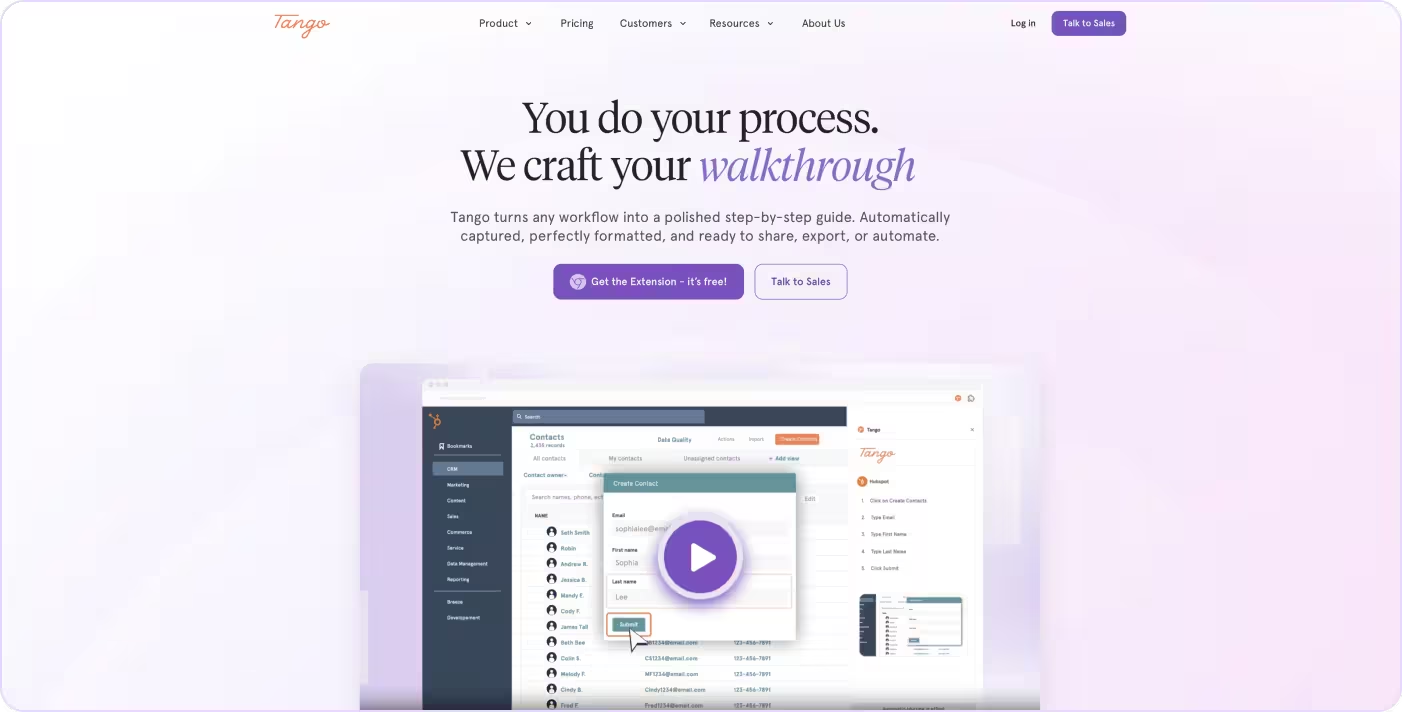
Tango makes it easy for anyone to capture, share, and apply knowledge in seconds, in the flow of work. Instead of wasting time on tedious documentation that hardly gets used, Tango automatically captures your steps while you work to generate on-screen, interactive walkthroughs showing people exactly what to do and where to click to complete a process, with no code or special skills required.
If you want to find the right answers, in the right place, at the right time—and cut down on interruptions, repetitive questions, and synchronous meeting requests—you need Guide Me.
Features
If your team needs a fast way to create interactive how-to guides, check out what you can do with Tango:
- Capture workflows across browser-based and desktop applications without code
- Click through a process once to generate step-by-step documentation automatically
- Add annotations, callouts, descriptions, and links to provide additional context
- Use voice transcription to turn spoken explanations into workflow documentation
- Blur sensitive information and customize screenshots during or after capture
- Export workflows as PDF, Markdown, or HTML, or embed them into your existing tools
- Share workflows through links, knowledge bases, training materials, and documentation hubs
- Deliver in-app guidance with Guide Me so employees can follow processes without leaving their workflow
- Surface tips, guides, and reminders directly inside applications with Pins
- Track workflow engagement and usage with advanced viewership insights
- Maintain accurate documentation with workflow version history and easy updates
Pricing
Tango has four pricing options with different features:
- Free lets you create up to 5 Tangos per user and includes up to 10 free seats in a Workspace. It also allows you to send on-screen guidance to anyone in the Workspace and includes browser capture.
- Pro Team is $15 per month for each user for teams of 3 or more users and includes everything in the Free plan. It also includes unlimited Workflows, branded exports, browser and desktop capture, voice transcription, video embeds, workflow version history, export options including PDF, Markdown, and HTML, screenshot annotation and blurring, and advanced workflow insights for Tangos.
- Pro Personal is $22 per month for each user for small teams of up to 2 users. It includes the same features as Pro Team.
- Enterprise pricing varies by organization and includes everything in the Pro plans. It also includes automatic PII detection and redaction, multi-path Workflows, workflow translation, Pins, and Automations, 365-day version history and audit logs, SSO and SCIM, Workspace Analytics, and dedicated onboarding and training.
Let’s take a look at other tools.
2. Guru
Great for teams who want to keep their team’s information in one place
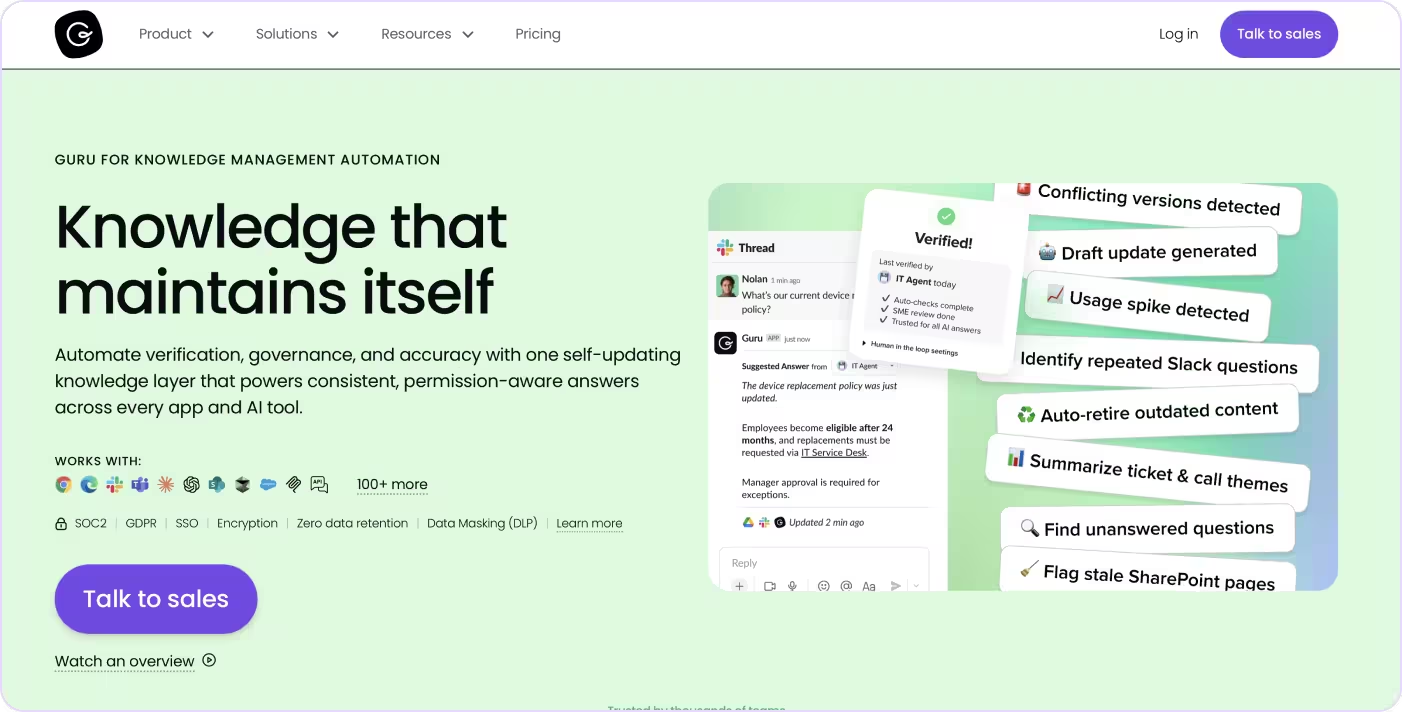
Guru is a company wiki, intranet, and knowledge base all in one tool. It provides teams with the features to discover, create, identify, and improve knowledge across the organization. With AI integrations, Guru helps teams save time when looking for answers, generating content, and finding the right person to ask questions.
Features
Check out what you can get done with Guru:
- Show people helpful content based on their activity.
- Capture and create content in your browser, in Slack, and wherever your team works.
- Surface trending topics from Slack.
- Use analytics to get insights on what your team searches for, how they use content, and how it impacts their performance.
- Send automated reminders to subject matter experts about keeping content up to date.
- Leverage integrations to connect Guru to other tools.
- Start from scratch or use a template to create content.
- Save time by using AI to answer questions, find answers, and create content.
Pricing
Guru has three pricing options for teams:
- Starter begins at $10 per user per month and includes knowledge capture, browser extension access, integrations with tools like Slack and Microsoft Teams, and content verification workflows.
- Builder starts at $15 per user per month and includes everything in Starter, plus analytics, advanced permissions, AI-powered search and knowledge delivery, and additional integrations.
- Enterprise pricing varies with each organization. It’s a customizable plan that includes AI-powered content suggestions, a customer success manager, and premier support.
Looking for a solution with more integrations? Try this next option.
3. Confluence
Great for teams that want to create a knowledge base with multiple templates and apps.

Confluence is a remote-friendly open platform workspace your team can use to share knowledge and collaborate on projects. This tool lets you build knowledge bases for documentation and product requirements. Confluence also includes many templates and integrations for other tools to customize and streamline teams.
Features
Here are a few highlights of ways you can use Confluence:
- Build a documentation knowledge base.
- Find information with labels, advanced search, and page tree views.
- Implement apps and integrations into your workspace that dynamically update.
- Manage internal and external access with permissions settings.
- Use more than 100 templates or start from scratch.
- Collaborate with teammates in real time by editing pages at the same time, adding in-line comments, and using Confluence’s social features.
- Organize information in Spaces.
Pricing
Confluence has four pricing options and can vary depending on the number of active users:
- Free includes up to 2GB of file storage, unlimited spaces and pages, apps and integrations, and supports up to 10 users.
- Standard is about $6.70 per user per month and includes everything from the Free plan. This plan includes up to 250 GB of file storage, user permissions, local business hours support, and support for up to 250,000 users.
- Premium is about $13.20 per user per month and includes everything from the Standard plan. This plan includes unlimited storage, analytics, 24/7 premium support, and team calendars.
- Enterprise pricing varies, is available when your team has 801 or more users, and includes everything from the Premium plan. The plan includes unlimited sites, an Atlassian Access subscription, and 24/7 Enterprise support.
Looking for a customer support platform with a built-in knowledge base? This next one is worth a look.
4. HubSpot Knowledge Base Software
Great for teams that look to turn knowledge bases into a core part of their customer support strategy.
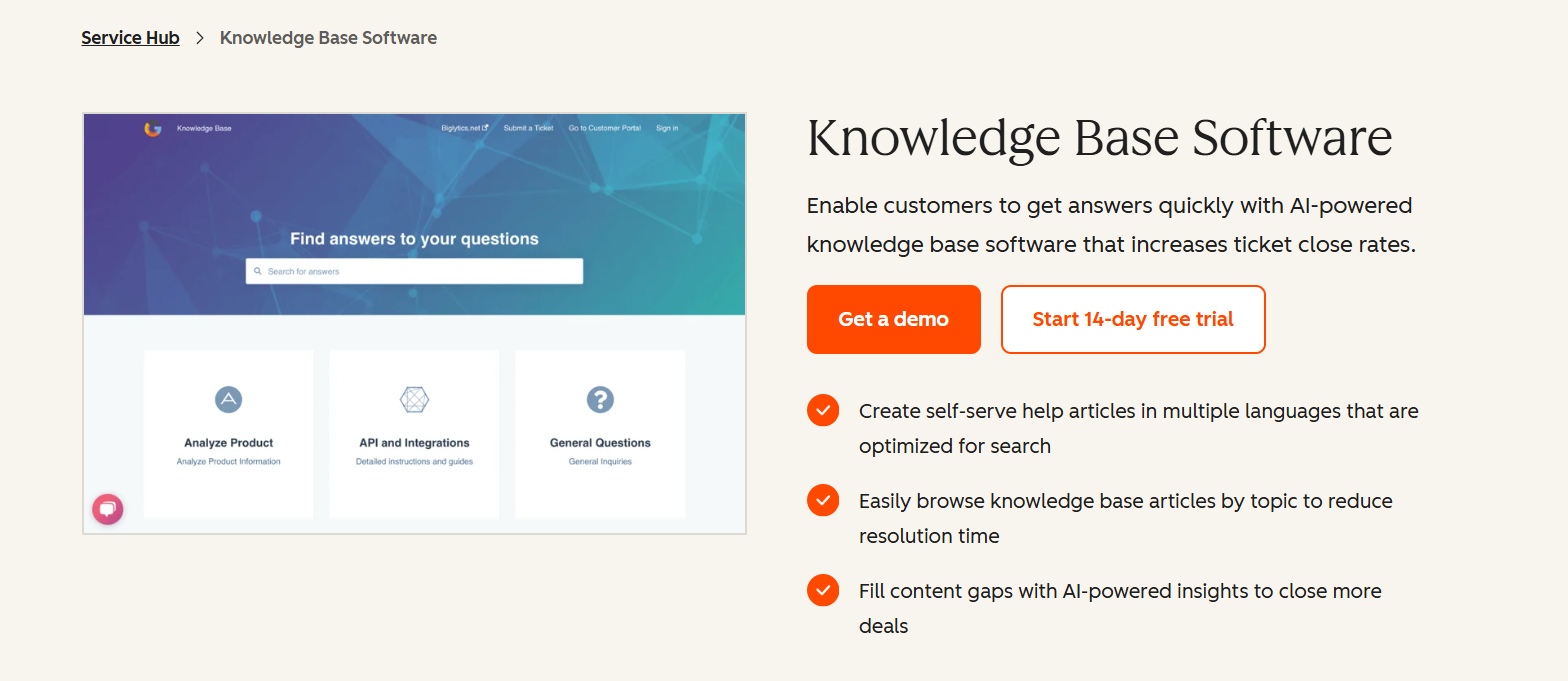
HubSpot’s knowledge base software uses AI to help companies set up comprehensive resources at scale to help reduce support tickets through top-notch user experiences. For example, the platform tracks existing knowledge base performance and service data to recommend article ideas your customer base might be most interested in.
Features
Here’s how HubSpot helps turn knowledge bases into a central point of your customer support efforts:
- Gauge support article usefulness through metrics like total views, time spent on article, and helpfulness/unhelpfulness ratings.
- Use the platform’s native CMS tools to build, publish, and search-optimize your articles at scale.
- Appeal to multiple customer segments with multi-language support.
- Use filters, search bars, and categories to help users and sales reps find relevant resources as fast as possible.
- Collaborate on support articles through comments and approvals.
- Use AI assistants to create content faster.
Pricing
HubSpot’s knowledge base management software is available in Service Hub Professional and Enterprise packages.
- Service Hub Professional is available starting from $90 per user per month and includes one knowledge base per account with up to 2,000 articles, plus other customer service tools including customer success management, service analytics, and 1:1 video messaging.
- Service Hub Enterprise costs $150 per user per month and allows for up to 100 knowledge bases per account with up to 10,000 articles for each, plus full access to Service Hub features.
Want a knowledge base that helps keep information accurate and up to date? This next tool is worth a look.
5. Slite
Great for AI-driven teams that want one maintained source of truth their people and AI agents can both rely on.
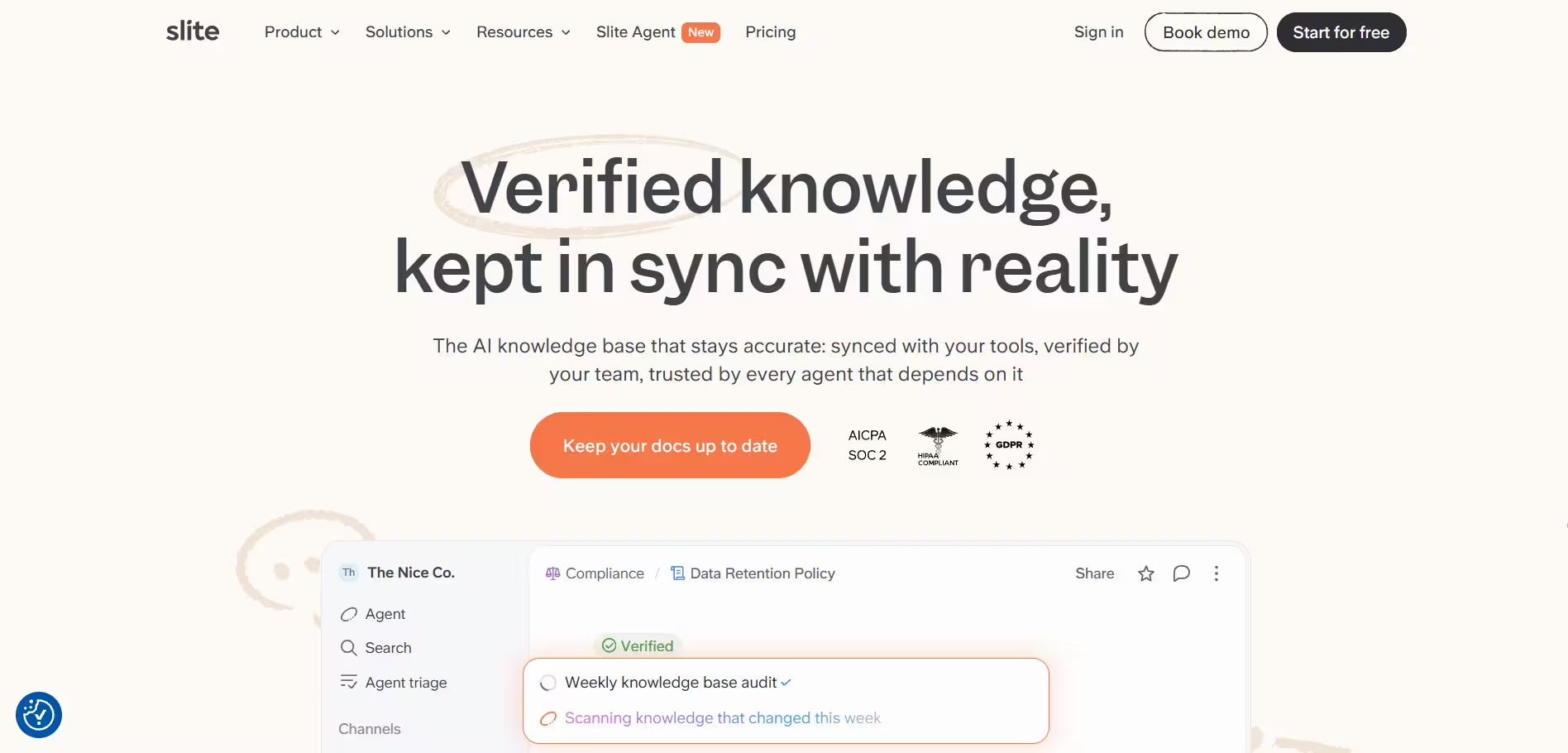
Slite is an AI knowledge base with built-in enterprise search that connects natively to 20+ of the tools teams use most. It turns fragmented company knowledge into one maintained source of truth: it brings in what's scattered across those tools, flags what's outdated, duplicated or contradictory, and the Slite Agent proposes fixes for a named owner to verify. Once the knowledge base is clean, self-maintaining routines keep it that way, with the Slite Agent watching your connected tools for drift while owners and review cycles keep every doc verified. Ask gives permission-aware, cited answers across it all (on Pro), and the Slite MCP lets Claude, ChatGPT, and Cursor search, edit, and propose changes.
Features
If you want a centralized knowledge base that is easy to set up and keep accurate through automated maintenance routines, check out what Slite can do:
- Detect outdated or missing docs across Slite and 20+ connected tools with the Slite Agent, which drafts the corrected text for review
- Review every proposed change in a triage view before it goes live
- Search across Slite and 20+ connected tools with permission-aware, cited answers, or a "no answer found" instead of a guess (cross-tool search on Pro)
- Spot missing knowledge with Ask Insights, which surfaces questions the docs could not answer
- Assign every doc a named owner and a verification cycle, so verified docs rank higher in search and Ask
- Find outdated, expired, and empty docs in the Knowledge Management Panel, with usage analytics
- Write in a rich editor with tables, flowcharts, Excalidraw, LaTeX, code, and Loom embeds, plus version history
- Use native integrations with 20+ tools, including Slack, Google Drive, Linear, GitHub, Jira, and Confluence
- Connect external AI agents such as Claude, ChatGPT, and Cursor through MCP read and write access on every plan
Pricing
- Slite has three pricing options, plus a 14-day trial. There is no free plan.
- Basic is $10 per user per month billed annually and includes the verified wiki, doc verification, the rich editor, native integrations, MCP and API access, and Ask across Slite docs.
- Pro is $20 per user per month billed annually and includes everything in Basic. It also includes the Slite Agent, Ask across connected tools, agent workflows, SEO indexing for public docs, and HIPAA support.
- Enterprise pricing is custom and includes everything in Pro. It also includes SSO and SCIM, plus guided onboarding and migration assistance.
Are you on a Microsoft-forward team? This next tool may be something to get excited about.
6. SharePoint
Great for Microsoft-based teams that need to access knowledge anywhere.
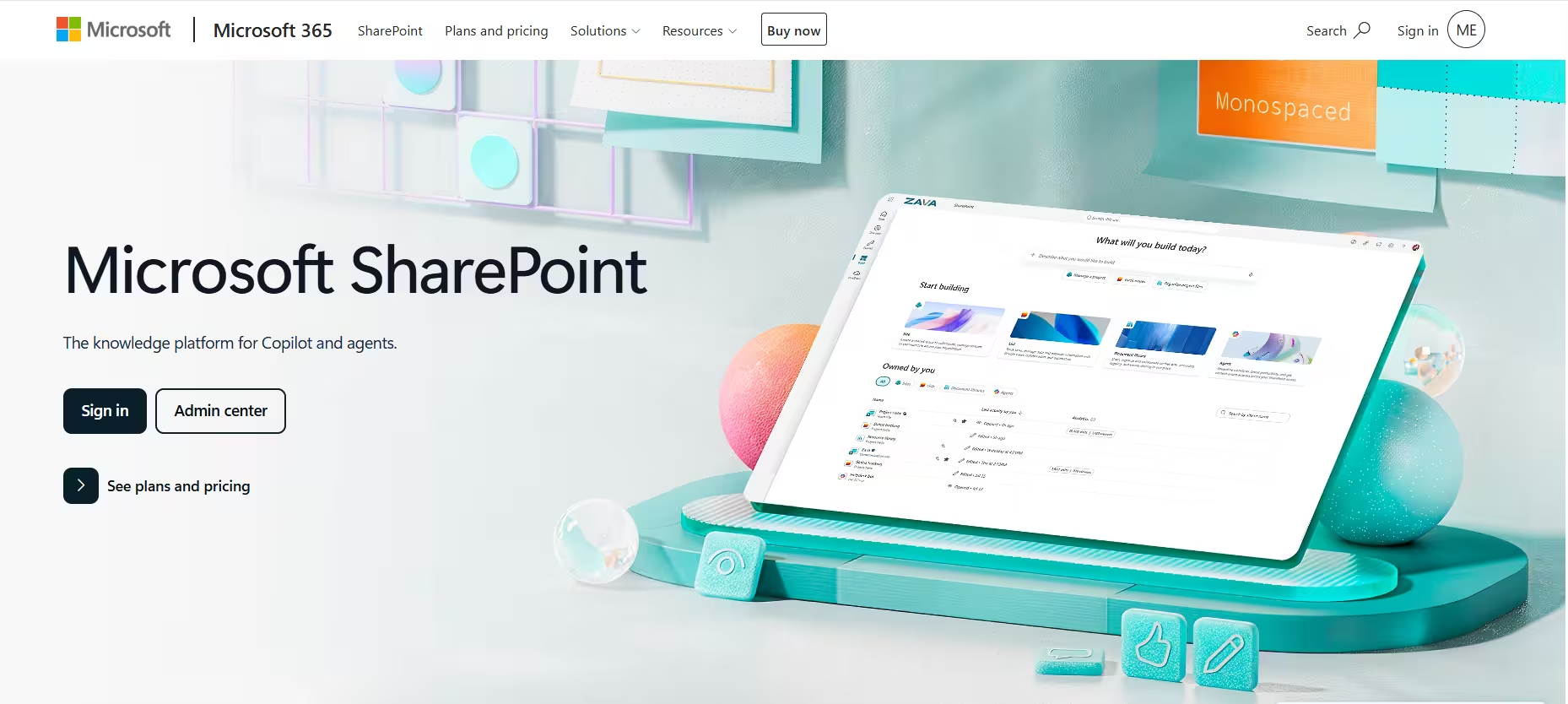
SharePoint is an intelligent intranet that lets teams manage content and knowledge for seamless collaboration. You can create websites to house, manage, and share information. Teams can also access SharePoint on any mobile device to keep information close at hand, even on the go.
Features
With SharePoint, you can:
- Access it on PC, Mac, and mobile devices.
- Use powerful search to discover information.
- Share files within and outside of the organization.
- Sync local files or folders for offline viewing or editing on Mac or PC.
- Work on documents at the same time with Microsoft Office apps.
- Organize content in document libraries with access and versioning control.
- Share and manage information with Microsoft Lists.
- Surface conversations from Yammer.
Pricing
SharePoint includes two SharePoint online pricing options and one pricing option that includes other Microsoft Office applications.
- SharePoint Online (Plan 1) is $5 per user per month and includes secure file sharing, team sites, document libraries with versioning and access controls, search capabilities, and 1 TB of OneDrive storage per user.
- Microsoft 365 Business Standard is $12.50 per user per month and includes everything in SharePoint Online (Plan 1), plus desktop, web, and mobile versions of Microsoft 365 apps, custom business email, Microsoft Teams, and additional collaboration tools.
- Microsoft 365 Copilot is available as an add-on for $30 per user per month and provides AI-powered assistance across Microsoft 365 applications, Business Chat, Copilot Pages, and Copilot Studio.
Looking for an easier way to share video? Stay tuned for this next one.
7. Loom
Great for teams that want to easily share screen recordings.

Loom is a simple video messaging platform that lets you record your screen and camera to create videos. Your team can use interactive features like emoji reactions and time stamped comments to respond to videos and stay engaged. Higher pricing tiers allow access to more advanced analytics and privacy controls.
Features
Check out Loom’s features that help you simplify screen and video sharing:
- Create videos using simple screen recording, camera capture, and instant editing.
- Generate unlimited transcriptions and screenshots for all users.
- Use integrations with other tools.
- Get viewer and engagement insights.
- Use password-protected videos, SSO (SAML), and advanced content privacy for paid tiers.
- Choose between the desktop app, mobile app, and Chrome extension.
Pricing
Loom has three pricing tiers and two types of creators: Creators Lite and Creator Accounts. Creator Lite users are always free and have limited video recording capabilities. Creator accounts are for paid users that include unlimited video recording capabilities.
- Starter is free and includes screen and camera recording, video sharing, basic editing, transcriptions, and viewer insights.
- Business starts at $15 per creator per month and includes everything in the Starter plan, plus unlimited recording length, advanced editing tools, custom branding, engagement insights, and team collaboration features.
- Enterprise pricing varies and includes everything in the Business plan. It also includes advanced content privacy, custom data retention policies, Salesforce and Zoom integrations, and allows unlimited members.
If you’re in the market for a tool that’s simple yet powerful, this next one’s for you.
8. Notion
Great for teams that want to simplify and cut down on other tools.

Notion is a workspace that lets you manage and create wikis, docs, and projects in one place. Their configurable blocks and content types can help you customize your knowledge base for your team. Notion AI is its latest feature that can automate and speed up tasks across its platform.
Features
If you’re looking for a way to condense many tools into one, learn what features Notion brings to the table:
- Collaborate in your team’s workspace to create wikis, docs, and projects.
- Create projects and docs using configurable blocks and content types.
- Manage privacy with permission groups and open and closed team spaces.
- Invite guest collaborators to view your workspaces.
- Search with powerful filters to find what you need.
- Import from other tools or start with a template.
- Get page analytics to view engagement.
- See page history.
- Use integrations with other tools.
- Automate tasks with Notion AI.
Pricing
Notion has four pricing options for your team to choose from:
- Free includes a collaborative workspace, basic page analytics, integrations with other tools, and allows you to invite up to 10 guests.
- Plus is $10 per user per month and includes everything in the Free plan. It also includes unlimited blocks for teams, unlimited file uploads, and the ability to invite unlimited guests.
- Business is $20 per user per month and includes everything in the Plus plan. It also includes advanced page analytics, private teamspaces, and the ability to invite unlimited guests.
- Enterprise pricing varies and includes everything in business. It also includes workspace analytics, unlimited page history, and a dedicated success manager for organizations with 100 or more seats.
The next tool may be just what your technical teammates have been searching for.
9. Gitbook
Great for technical teams that want to create and manage better documentation.

Gitbook is a knowledge sharing platform designed and inspired by how developers work. You can create, collaborate, and review directly in GitBook. GitBook Lens can speed up your team’s search by quickly scanning your documentation and summarizing an answer in seconds.
Features
Learn about how Gitbook can support technical teams:
- Organize content with published, private, and unlisted spaces.
- Keep track of progress with version history, an activity feed, and change requests.
- Get started with templates or by importing from other tools.
- Use integrations with other tools.
- Leverage Lens (Gitbook AI) for faster and smarter search.
Pricing
Gitbook has four pricing options:
- Free is free and includes one member, templates, version history, published and private spaces, and integrations with other tools.
- Premium is $12 per user per month plus an $65 monthly platform fee. It includes basic customization, email domain SSO, and basic roles.
- Ultimate is $12 per user per month plus an $249 monthly platform fee. It includes advanced customization and roles, team management, and visitor authentication.
- Enterprise pricing varies and includes everything in Ultimate. It also includes a dedicated customer success manager, setup and onboarding support, and legal and security reviews for teams of 50 or more.
Is your team already using Google’s free apps? You can consider upgrading with this next tool.
10. Google Workspace
Great for teams that want a suite of tools to help share knowledge.
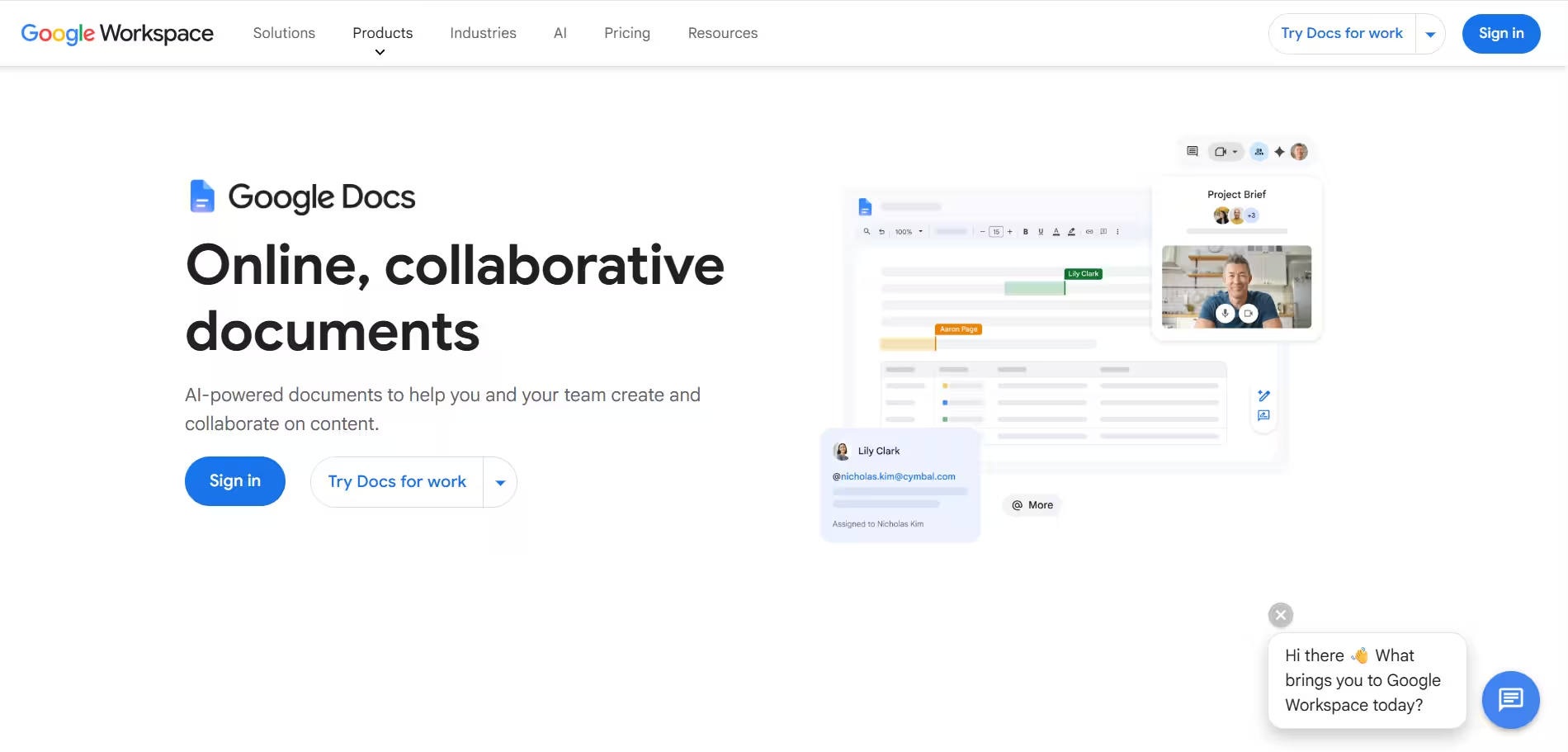
Google Workspace offers teams business-grade services for familiar apps like Gmail, Calendar, and Drive. This gives your team various formats for them to share knowledge, like video and documentation, with a single platform. Your team can also enjoy more storage, 24/7 phone and email support, and other enhanced features.
Features
What exactly can you do with Google Workspace? Learn more about their feature below:
- Get a custom email for your business that blocks 99.9% of attacks.
- Meet with teams through video and voice conferencing with various features in each plan.
- Manage files with shared drives for your team while supporting over 100 file types.
- Use shared calendars and appointment booking pages for meetings.
- Protect your team with security and management features, like two-step verification, for all plans.
- Collaborate in real time on content creation with Docs, Sheets, and Slides.
- Build apps without code with AppSheet.
- Use smart search with Cloud Search.
Pricing
Google Workspace has four pricing plans. Business Starter, Business Standard, and Business Plus have a maximum of 300 users.
- Business Starter is $7 per user per month and includes a custom and secure business email, 100 participant video meetings, 30 GB of storage per user, and security and management controls.
- Business Standard is $14 per user per month and includes everything from the Business Starter plan. It also includes 150 participant video meetings and recording, 2 TB of storage per user, and a paid option to upgrade to Enhanced Support.
- Business Plus is $22 per user per month and includes everything from the Business Standard plan. It also includes eDiscovery and retention for emails, 500 participant video meetings with attendance tracking, 5 TB storage per user, and enhanced security and management controls.
- Enterprise pricing varies and includes everything from the Business Plus plan. It also includes noise cancellation and in-domain live streaming for video meetings such as advanced security, management, and compliance controls, and Enhanced Support.
Looking for a tool specifically built for knowledge sharing? Check out this next option on our list.
11. Bloomfire
Great for teams that want a powerful solution built to organize knowledge.

Bloomfire’s knowledge management platform can support your team’s knowledge capture, discovery, curation, control, and security processes. Their team can tailor the platform to your needs and support you during and after setup. On top of creating and managing content, you can also use Bloomfire’s analytics to surface knowledge gaps and celebrate top contributors.
Features
Check out how Bloomfire’s platform can support your team’s growing library of institutional knowledge:
- Create content with text, visuals, and more.
- Post questions for the team and record answers for the future.
- Help your team find what they need across all knowledge bases using powerful search, filters, and a synonym library.
- Curate content and customize feeds.
- Send newsletters and notifications about content.
- Tailor your team’s experience with a flexible homepage, content feeds, and notifications.
- Use integrations with other tools, data sources, and current file storage systems.
- Manage your team’s content review process.
- Analyze usage with built-in analytics.
- Enjoy unlimited storage for all of your content.
- Search deep-indexed content to find what you need.
- Manage access with flexible controls.
- Work with the integration team to tailor Bloomfire to your team’s needs and support onboarding your team to the platform.
- Collaborate with your customer success manager to keep knowledge up to date, analyze data, and make the most of Bloomfire.
Pricing
Bloomfire offers custom pricing based on team size, deployment needs, and implementation requirements. Reach out to get a tailored quote based on your team’s needs!
How to pick the best knowledge sharing tools for your team
At the risk of stating the obvious—this is a lot to take in, and there are lots of options to choose from. To avoid analysis paralysis, use your team’s knowledge sharing goals as your guide.
Is your knowledge base in need of a complete overhaul? A large workspace or intranet may fit the bill. Do you need to close the learning loop so you can continuously create and level up your existing knowledge? A more targeted tool with built-in feedback loops can probably help with that.
Here are a few capabilities to consider when searching for a tool:
- Formats, apps, integrations, and features that cater to different learning styles and existing tools
- Integrations and features that help keep your team in the flow of work
- Automation, AI, and other time-saving features
- Editing and customization options
- Special skills or training needed to use them (and how that might impact adoption)
- Sharing and exporting options
- Searchability, discoverability, and overall ease of organization
- Solutions to help with version control and keeping content current
- Security, permissions, and access control
Something else you may want to keep in mind? Which tools make knowledge sharing easy, fast, and fun. 💃
All features and prices are sourced from company websites and are accurate at the time of writing (May 2026).
The bottom line
Finding the right knowledge sharing tools is not only a good first step to building a tech stack that enables everyone to do their best work.
It’s also a prerequisite for building a strong knowledge sharing culture, where sharing best practices, tips, and tricks becomes an ongoing, ingrained practice—vs. a procrastinated project.
Tools like Tango can speed up the quantity *and* quality of knowledge you share. Instead of combing through lengthy, fragmented, outdated, and hard-to-navigate documentation, your team can quickly find the guidance they need to hit their goals while they work.
Frequently asked questions
What’s the difference between a knowledge base and a knowledge sharing platform?
A knowledge base is your team’s collection of information for their processes and workflows. A knowledge sharing platform is the tool or database you'll use to manage your team’s knowledge base.
What are the benefits of having strong knowledge sharing tools?
The right knowledge sharing tools can enable your team to quickly share, update, and manage internal information without interrupting your workflow. Your team can use tools to share tips and provide enough context for other teammates to learn on their own.
What are some knowledge sharing best practices my team can follow?
You can promote better knowledge sharing by choosing relevant knowledge sharing tools, seeing how people prefer to learn, and working together to create knowledge sharing goals.



Next time someone asks, “how do I…?” Send a Tango.
Start capturing your first workflow today.