Tango Like a Power User: 21 Ways To Make Better How-To Guides


What’s the second best thing to learning something new? Sharing it with someone else.
That’s why we’ve rounded up 21 ways to help you use Tango to the fullest—straight from the people who built it.
Whether you’re fresh from the Chrome Store, semi-familiar with Tango, or codependent in the best sense—this list is for you.
- Show your steps as a slideshow. 😍
- Guide people along—literally. 🤗
- Capture processes incognito—in two clicks. 🕵🏽
- Keep content current with Re-capture. ➕
- Record a Loom *while* you capture a Tango. 🤯
- Batch blur sensitive information in the blink of an eye. 💥
- *Surface* sensitive information with Secure Blur. 🔒
- Move the orange box to explain what to do next. 🟧
- Use search to find existing Tangos 10x faster. 🔍
- Title your Tangos with AI—and a little automagic. 🪄
- Don’t underestimate the power of a great description. 🏆
- Give up something good (static PDFs) for something great. 💪🏿
- Embrace new and improved embeds. 😎
- Copy + paste to Tango with your favorite tools. 👯♀️
- Tango at top speed with keyboard shortcuts. ⌨️
- Zoom in (and out). ✔️
- Keep it short and sweet. 🍭
- Give the people the GIFs they want. 😁
- Express yourself with Workspace icons. 🛼
- Subscribe to Launch Notes for the latest and greatest. 📣
- Don’t sleep on Tango’s help center. 📌
1. Show your steps as a slideshow. 😍
Do you love the slideshow format of Live Embed and wish you could share a link to that instead of the vertical, step-by-step version?
- Find your Tango’s URL.
- Replace /workflow/ with /embed/preview/.
- Watch what happens. ✨
2. Guide people along—literally. 🤗
Want to make documentation people will actually use? We have two words (and one button) for you: Guide Me.
First, make sure everyone you’re coaching has Tango’s free Chrome extension. That’ll give everybody access to the pop-up checklist that makes it possible to:
- Click the Guide Me button on any Tango how-to guide.
- Be directed to the webpage where a process begins.
- Access the side-by-side, how-to guide turned interactive checklist.
- Check off each instruction as it’s completed (without losing your place, or bouncing between tabs!).
What’s the result? More execution-on-autopilot—and energy for initiatives that *do* need your undivided attention. (Another reason to stop training your team on software!)
3. Capture processes incognito—in two clicks.🕵🏽
Need to replicate exactly what your end users will see, as you create a how-to guide to help people zip through a process?
It’s easier than you might think.
4. Keep content current with Re-capture.➕
A little icon goes a long way.
Has an existing process evolved? Don’t worry; you don’t need to start from scratch.

- Go to your existing Tango.
- Hover over the area between steps.
- Click on the ➕ icon.
- Insert or capture more steps.
- Save your updated process.
- Check this task off your list. 🎊
5. Record a Loom *while* you capture a Tango. 🤯
We have a Sales Operations Manager at Better Agency (👋, Nick!) to thank for this two-in-one training tip.
Use Loom and Tango together to get the best of both worlds:
- Voiceover for anyone who likes to watch videos.
- Step-by-step documentation for everyone who likes to find answers fast.
6. Batch blur sensitive information in the blink of an eye. 💥
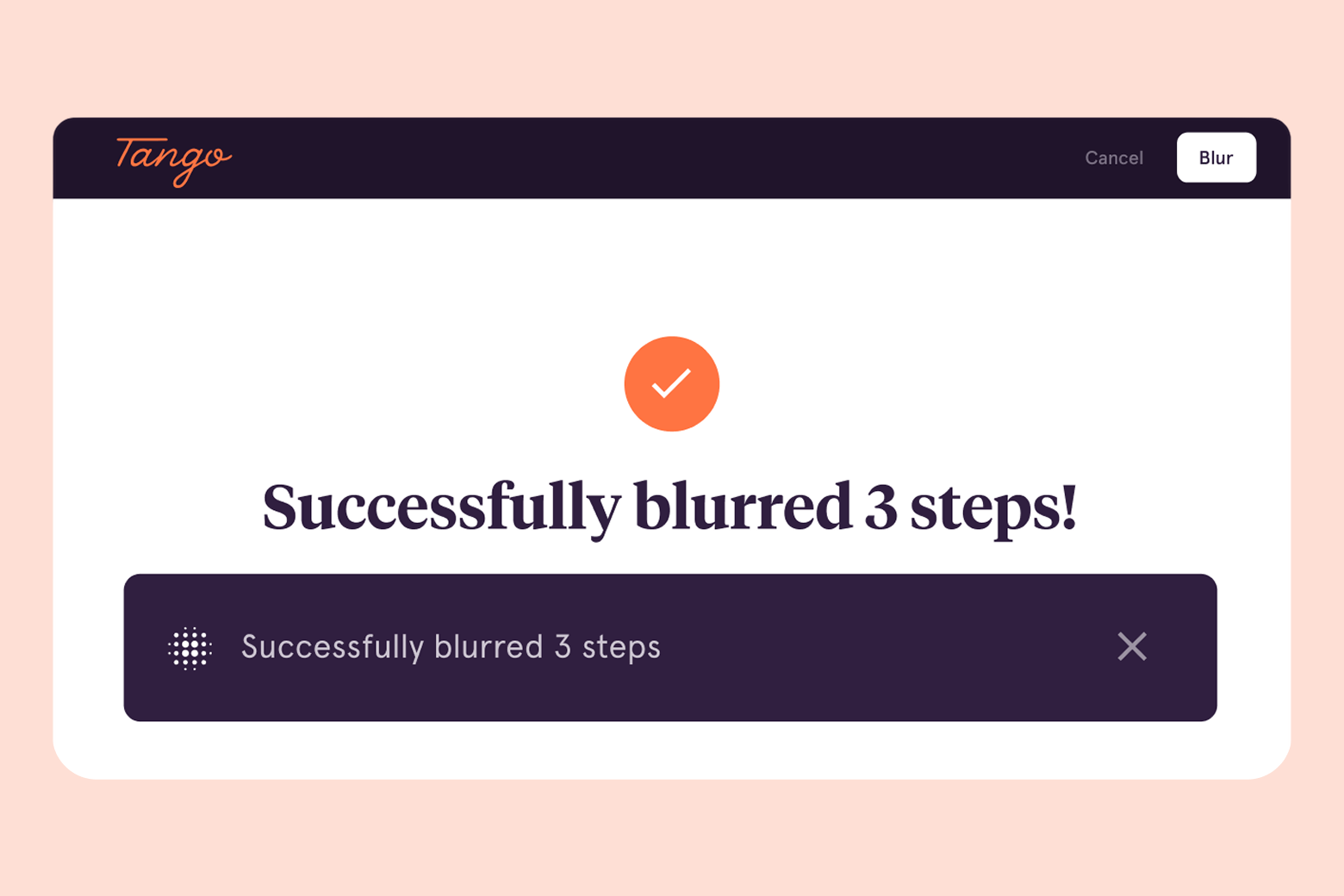
Doctoring screenshots to protect personally identifiable information (PII) throughout your documentation just got A LOT easier.
In case you haven’t already had the pleasure—meet Batch Blur. Aka the best way to update 100 screenshots in a single click.
Note: Since sensitive data can sneak into multiple steps within the same set of instructions, it's best to eliminate anything 🤔 in one swoop.
7. *Surface* sensitive information with Secure Blur. 🔒
Not to be confused with Batch Blur, Secure Blur makes it easy for Tango Enterprise customers to find PII—before quickly camouflaging it.
If privacy is Priority #1 from where you sit, Secure Blur makes it possible to meet even the most stringent security requirements—and helps you minimize accidental PII exposure. We’re all human!

8. Move the orange box to explain what to do next. 🟧
Without getting into too much detail:
- The orange box = The Action Box.
- The Action Box = The rectangle you use to indicate an action should be taken, as you run through a process.

Why we gave it a glow up:
- To make it possible to move the Action Box after generating a how-to guide.
- To quickly recalibrate the auto-crop and auto-zoom on your screenshots.
- To show people using your Tangos the perfect place to click, every step of the way. 🕺
9. Use search to find existing Tangos 10x faster. 🔍
It doesn’t take long to make a lot of Tangos. 🙂
Before we had search functionality, finding an existing how-to guide was…not fun. Think needle and a haystack. But not anymore! Use the shiny new search bar to find the knowledge you need, when you need it—and help others do the same.

10. Title your Tangos with AI—and a little automagic. 🪄
It doesn’t matter what you’re naming—a boat, a baby, a puppy, or a how-to guide. Coming up with something flawless takes time.
To help speed up that last one, there’s Automagic Titles. ✨
GPT-3.5 will automatically give any Tango you create a 10/10 title, based on the context of the content you captured.

11. Don’t underestimate the power of a great description. 🏆
The best how-to guides make it really easy for people to jump in.
Use the field at the top of your Tango to jot down:
- The scope of the process at hand → What’s included and excluded.
- The audience → Who your tutorial is for, plus any prerequisites for successful execution.
- A TL;DR (too long; didn’t read) → The key points, packaged into a short summary.
Note: If you want to go deep on best practices, Google’s technical writing course is 💯; no notes.
12. Give up something good (static PDFs) for something great. 💪🏿
We get it—PDFs are a familiar format. They’re easy to make, don’t require any special skills, and have probably served you well for years.
But to use Tango to its full potential—and help the people around you reach theirs—you don’t want to be worrying about version control. Or what’s floating around in the wild (full of fake news 👀).
Nine times out of 10, sharing and exporting your Tango as a live file is a better bet.
13. Embrace new and improved embeds. 😎
Embeds have been the MVP of Tango sharing options for a while, because they’re:
- Dynamic and always up-to-date. 🙏
- Compatible with all embed-friendly websites and knowledge bases.
- An incredibly engaging way to walk people through a process.
Now, anyone who views your embedded Tangos can choose their favorite way to follow along:
Like the idea of a single source of truth? Want to rebuild trust in your knowledge base? Interested in embedding a Tango into your website or knowledge base? We’ve got you covered.

14. Copy + paste to Tango with your favorite tools. 👯♀️
We built Tango to level up your processes—and to plug into systems that people already know and love.
You can copy and paste a Tango into tools like Google Drive, PowerPoint, Confluence, ZenDesk, Sharepoint, Notion, and Trainual in a few simple steps.
15. Tango at top speed with keyboard shortcuts. ⌨️
Who doesn’t love a shortcut?
- To undo/redo → Use Control Z OR Command Z.
- To move between steps → Use the ⬆️ ⬇️ arrow keys.
16. Zoom in (and out). ✔️
What’s better than automatically cropped and annotated screenshots?
Automatically cropped and annotated screenshots that zero in on what’s (most) important.
17. Keep it short and sweet. 🍭
There are over a million Tangos out in the world (which continues to make us feel all the feels!).
The average process captured with Tango is about 11 steps long. Keeping your how-tos short and sweet isn’t just a gift for the people following your Tangos—it’s also a great way to drive adoption of your documentation.
18. Give the people the GIFs they want. 😁
The day we learned we could upload external GIFs into steps without an image was a really good day.
19. Express yourself with Workspace icons. 🛼
Work isn’t always fun, but that doesn’t mean your Workspaces can’t be.
If you belong to multiple Tango Workspaces, Workspace icons are a fun way to keep them organized—and show some personality, too. Choose from our library or upload your own.

20. Subscribe to Launch Notes for the latest and greatest. 📣
If you’re an early adopter, Launch Notes are for you.
See what’s new to Tango each month, and never miss out on:
- Features you’ve been hoping for. 🤞🏽
- Incremental improvements with outsized benefits. 😍
- Updates our engineering team just can’t keep under wraps. 🎁
21. Don’t sleep on Tango’s help center. 📌
We care A LOT about 1) documentation and 2) ease of use at Tango. Story checks out, right?
We want it to be as easy as possible for you to get up and running—whether you’re creating a Tango or helping someone follow one for the first time.
You can find dozens of tips, tricks, and FAQs in our help center. Here’s a quick look at what’s helping people in Operations, Human Resources, Marketing, Finance, Information Technology, Sales, and more.

Next time someone asks, “how do I…?” Send a Tango.
Start capturing your first workflow today.