Need to export data from Salesforce? This step-by-step guide walks you through accessing Data Export, choosing your export settings, selecting the data you want to include, and starting or scheduling the export. Follow the instructions below to export your Salesforce data.
What you need to know about exporting data from Salesforce
Before exporting your Salesforce data, keep these considerations in mind:
- You need the appropriate Salesforce permissions to export data.
- Export frequency and availability can depend on your Salesforce edition.
- Larger exports may take longer to process.
- If you're using exports as backups, choose a frequency that reflects how often your Salesforce data changes.
1. Open Salesforce Setup
Click on Setup.

2. Open the Setup app
Click on Setup to open Salesforce Setup.

3. Search for Data Export
Type Data Export in the Quick Find box.

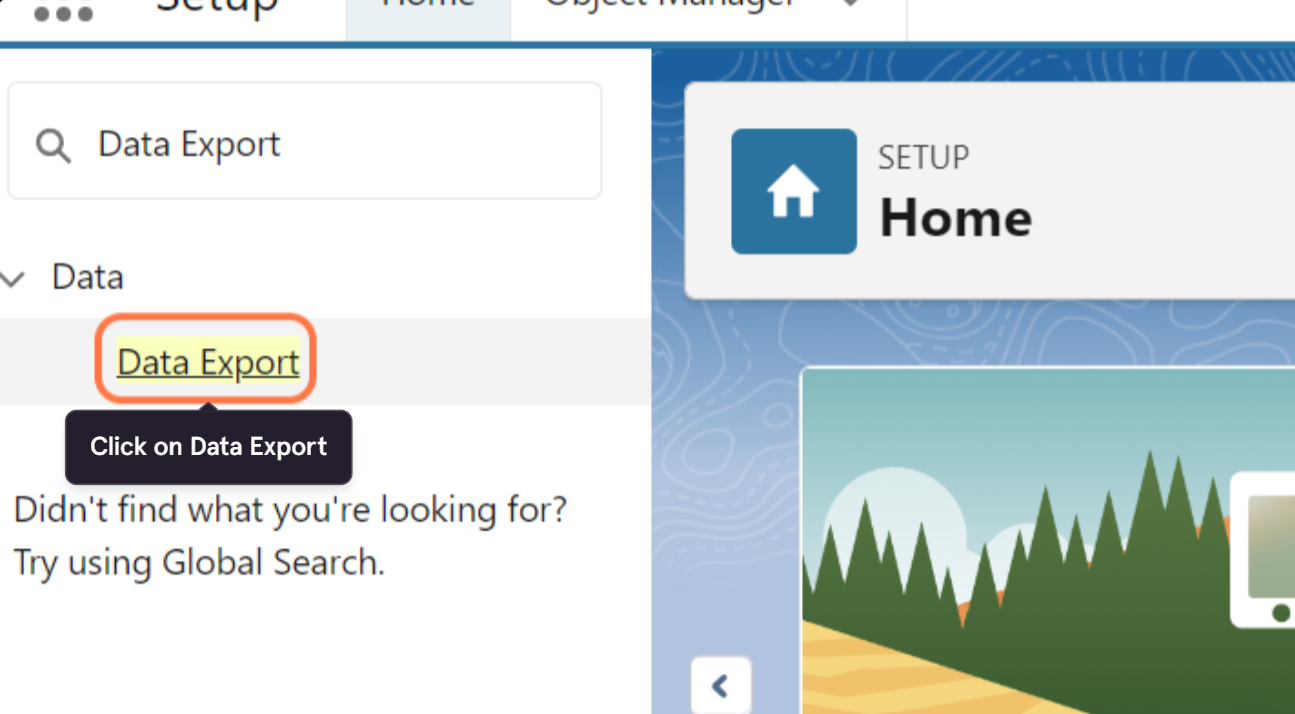
4. Open Data Export
Click on Data Export.
5. Choose when to export your data
Select Export Now to create an export immediately or Schedule Export to configure a recurring export.

6. Choose the file encoding
Select the Encoding you want to use for the exported files.
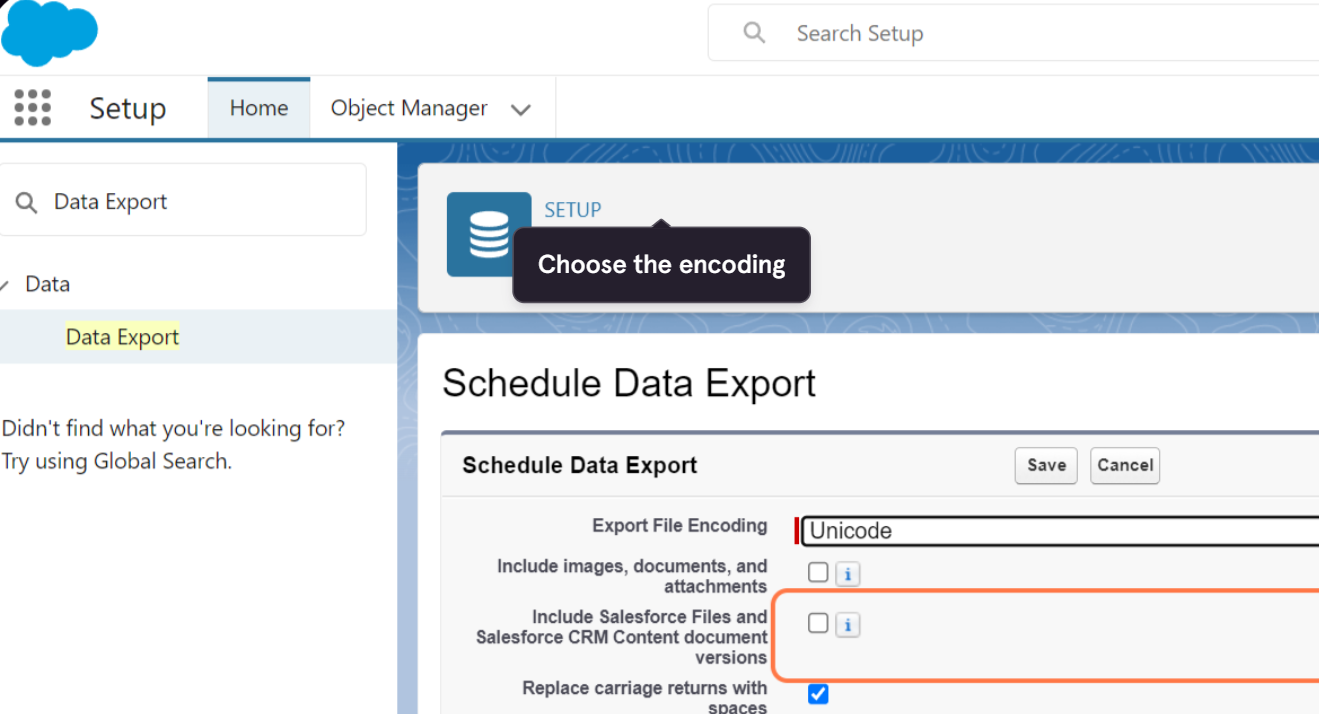
7. Choose whether to include images, documents, and attachments
Select Include images, documents, and attachments if you want to include these files in the export.

8. Choose whether to include Salesforce Files
Select the option to Include Salesforce Files and Salesforce CRM Content document versions if you want them included in the export.
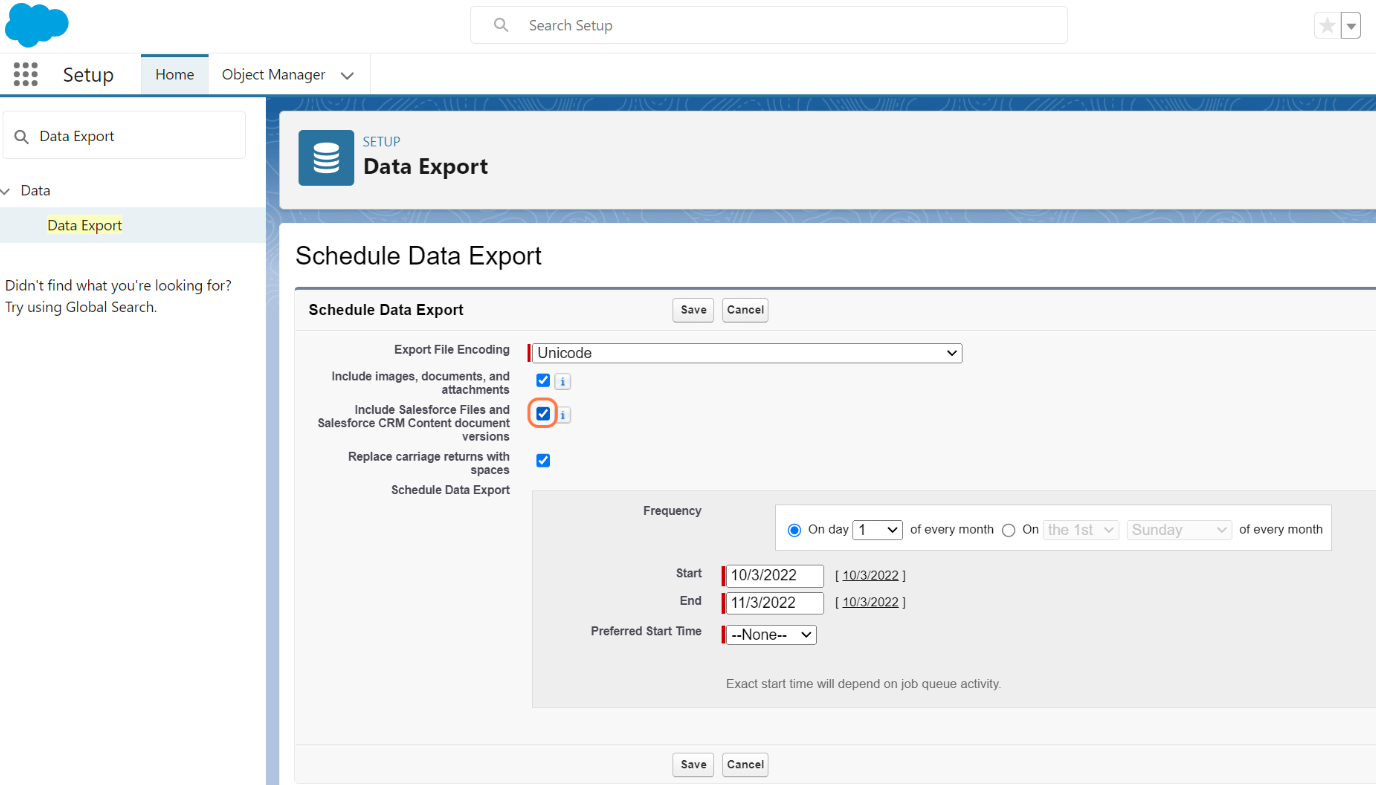
9. Choose how to handle carriage returns
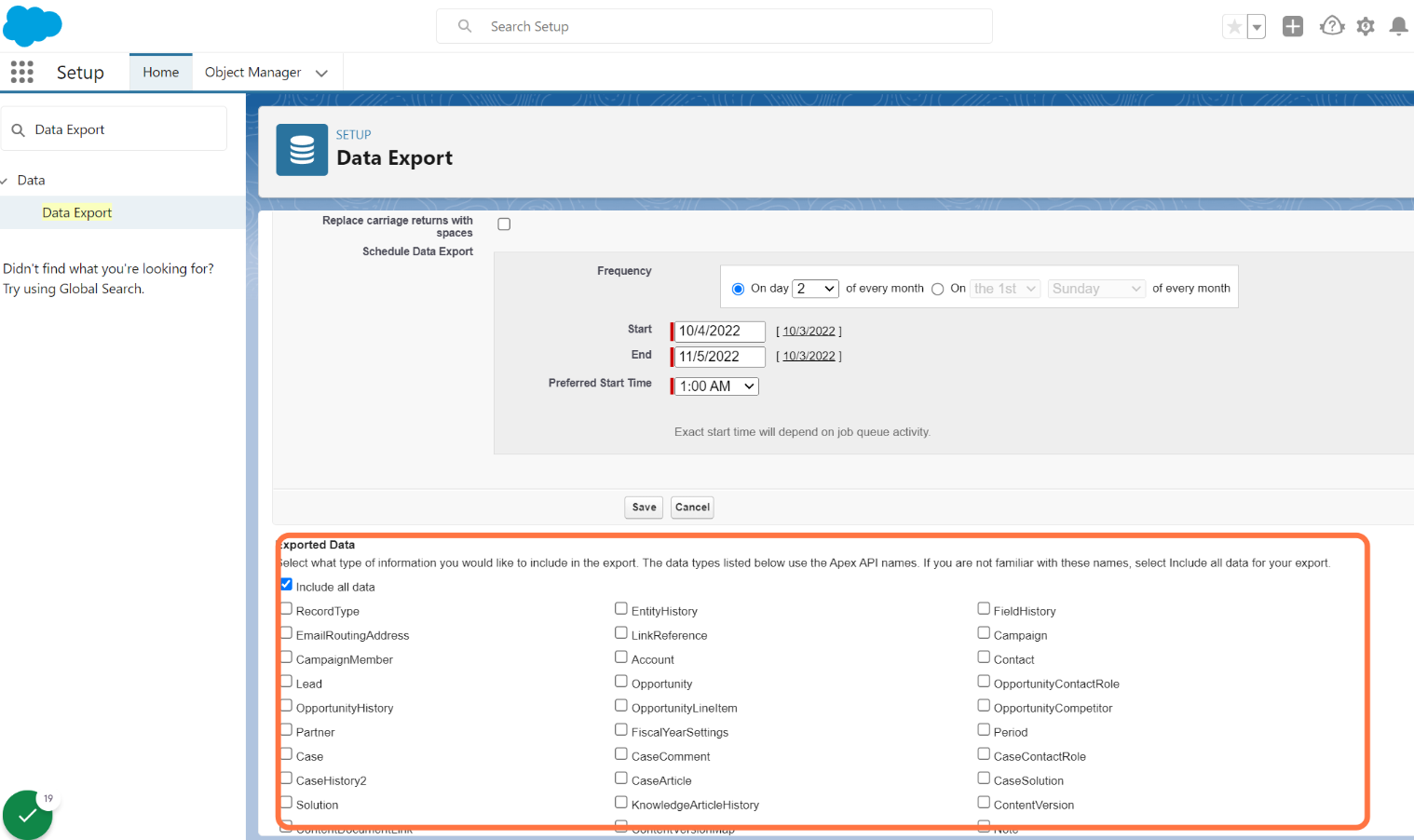
Select Replace carriage returns with spaces if you want line breaks and carriage returns replaced with spaces in the exported files.

10. Schedule the export
If you're scheduling the export, select the Frequency, Start Date, End Date, and Preferred Start Time for the recurring export.
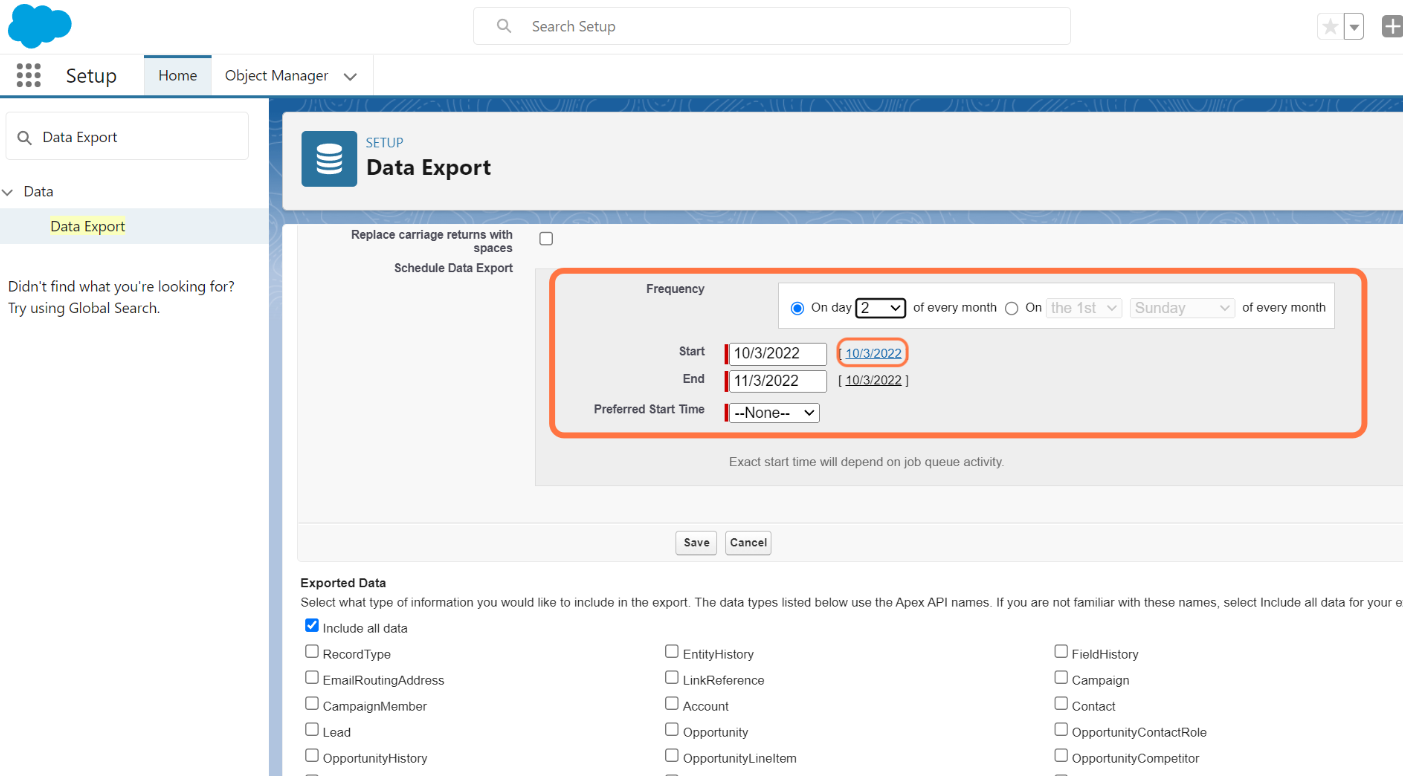
11. Select the data to export
Select the data you want to include in the export. Choose Include all data if you want to export all available data.
12. Start or save the export
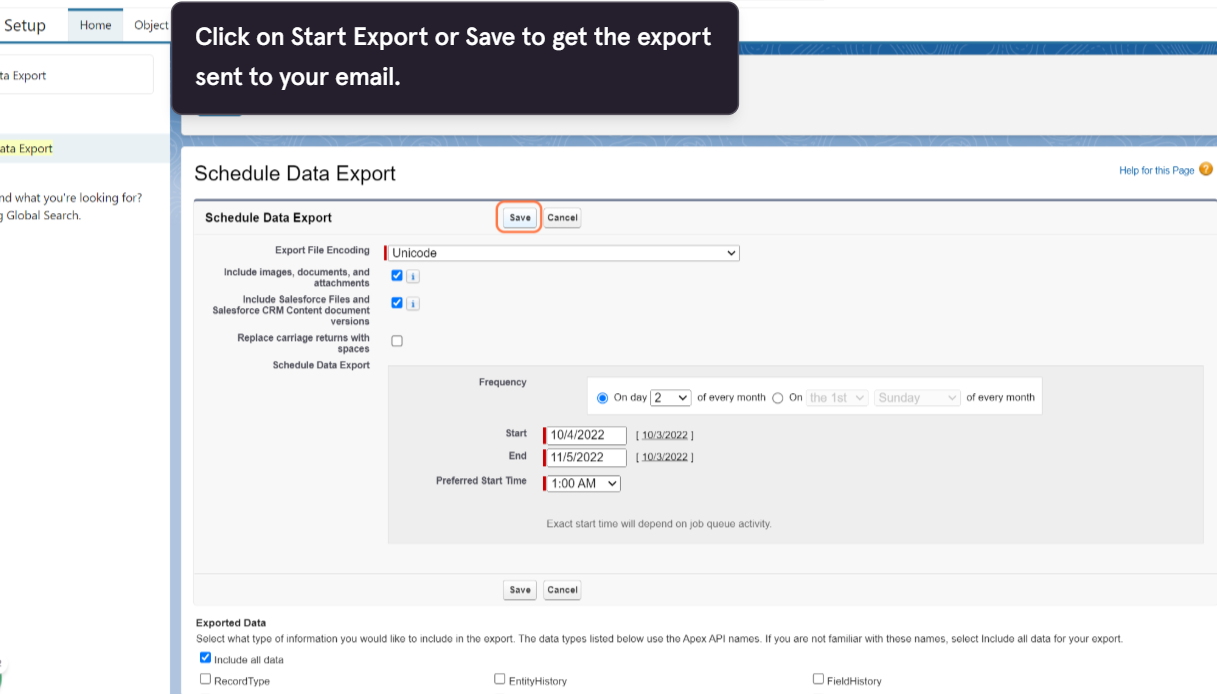
Click Start Export to begin a manual export or Save to save your scheduled export settings.
Salesforce will notify you when a manual export is ready to download.
How often should you export your Salesforce data?
How often you export your Salesforce data depends on how frequently your organization's data changes and your backup requirements. If you're using Data Export as part of your backup process, consider setting a recurring export schedule appropriate for how often you need an up-to-date copy of your data.
Well done! You've successfully configured a Salesforce data export. You can run exports manually or schedule recurring exports based on your organization's data needs.