How to organize SOPs: 8 best practices for your team

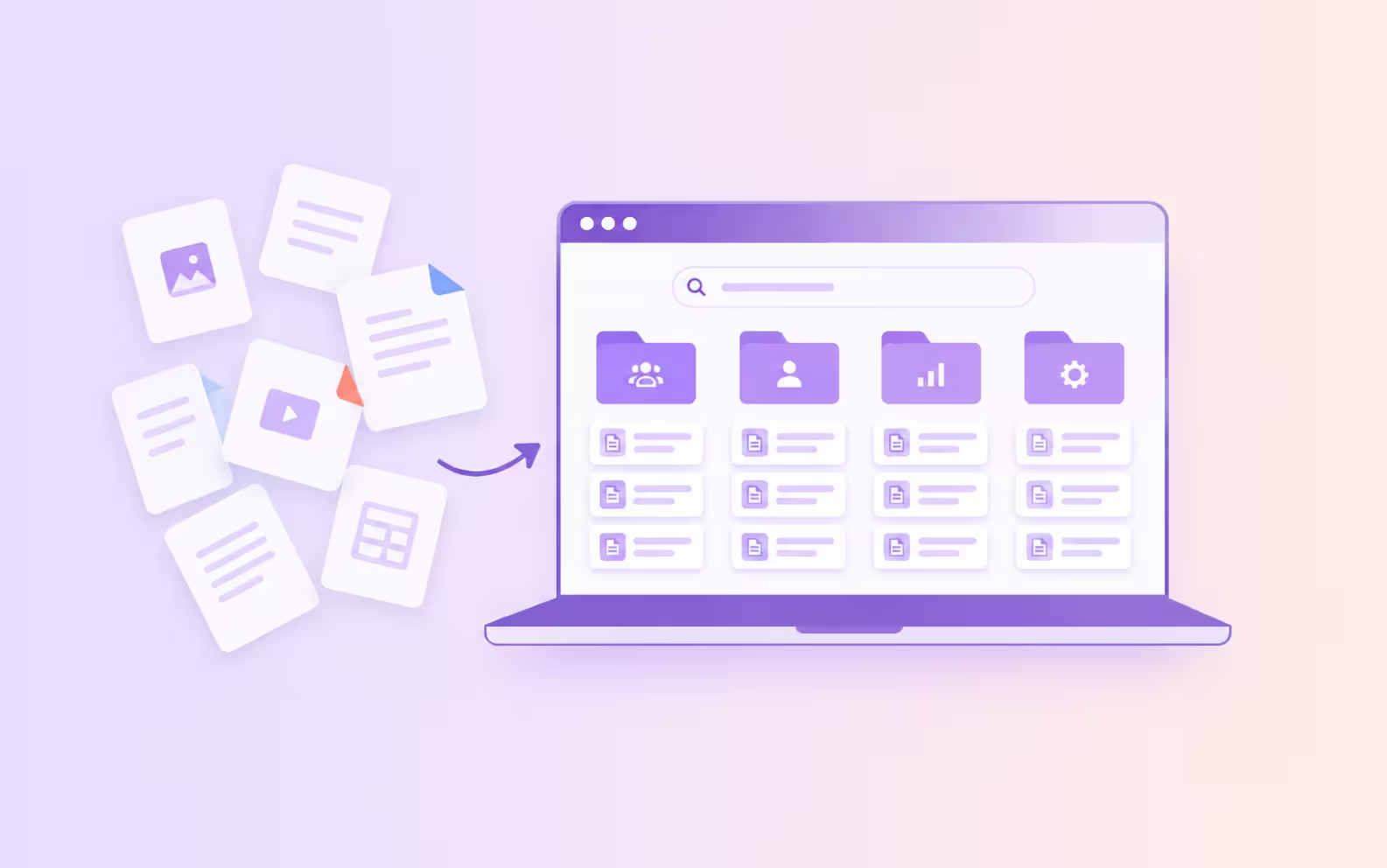
Creating SOPs is rarely the end of the documentation problem. The real test is whether employees can actually find and use them when they need help.
As more processes get documented, even a useful collection of SOPs can become difficult to navigate. Employees start asking coworkers where something lives, bookmarking old links, or relying on memory instead of the documentation that already exists.
That's when SOP organization becomes an operational problem, not just a documentation problem.
In this guide, we'll cover eight best practices for organizing SOPs so your process knowledge stays useful as your team and SOP library grow.
Benefits of organizing SOPs
Well-organized SOPs make it easier for employees to get the process guidance they need and use it consistently. As your organization grows, that can lead to:
How to organize SOPs in 8 steps
1. Audit your existing SOPs
Before you reorganize anything, get a clear picture of the SOPs you already have and where they're stored. Look across shared drives, knowledge bases, document folders, and anywhere else your team keeps process documentation.
As you review each SOP, ask:
- Is this procedure still used?
- Does it reflect how the process is actually completed today?
- Are the tools, systems, and steps it references still current?
- Does another SOP document the same or a similar process?
- Is there a process employees rely on that isn't documented yet?
Then decide which SOPs to keep, update, consolidate, archive, or create.
The goal isn't to reorganize every document you find. It's to determine what belongs in your SOP library so you're not building a new system around outdated, duplicate, or unnecessary documentation.
2. Create a single source of truth for SOPs
Once you've decided which SOPs belong in your library, choose one place where the current version of each procedure will live.
When the same SOP is stored in multiple places, different versions can quickly fall out of sync. One employee may be following the latest process while another is working from an outdated copy.
Your source of truth could be a knowledge base, shared workspace, or process documentation platform. What matters is that employees know where the authoritative version lives and where changes should be made.
That doesn't mean employees should have to return to that location every time they need an SOP. You can still share or embed procedures in the tools and resources your team already uses. The important thing is maintaining one authoritative version rather than creating separate copies that have to be updated independently.
3. Categorize SOPs around how people work
Once you have a central place for your SOPs, organize them in a way that reflects how employees actually look for process information.
Depending on your organization, you might group SOPs by:
- Process or workflow, such as employee onboarding, purchasing, or customer escalation
- Team or function, such as Sales, HR, Finance, or Customer Support
- Role, such as managers, sales reps, or support agents
- System or tool, such as Salesforce, Workday, or ServiceNow
- Product or service, if employees commonly look for procedures that way
You can combine approaches when it makes sense. For example, an HR library might be organized into recruiting, onboarding, benefits, and offboarding.
Keep the structure simple enough that employees can understand where to look without memorizing an exact path. Avoid adding unnecessary layers just because your documentation platform allows them.
The goal is to organize SOPs around how people work and look for information today, not around how your files happened to be organized in the past.
4. Use clear and consistent SOP naming conventions
Once you've established how your SOPs are organized, use a consistent naming convention so employees can quickly understand what each procedure covers.
Name SOPs based on the task they explain rather than using internal codes, vague labels, or titles that only make sense to the person who created them. Use the same general naming pattern across your library.
For example:
- Instead of: Salesforce SOP #12
- Use: How to create an opportunity in Salesforce
A simple convention like [action] + [task or object] + [system or context, when needed] works for many process libraries. For example: Submit an expense report in Ramp, Create a new user in Salesforce, or Offboard an employee in Workday.
The goal isn't to make every title identical. It's to make SOP names predictable enough that employees can scan a list and understand what each procedure will help them do.
5. Standardize the structure of each SOP
An organized SOP library is easier to use when each procedure has a clear purpose and follows a consistent structure. Avoid packing several distinct processes into one long SOP just because they're related.
For example, instead of creating one employee onboarding SOP that covers account setup, benefits enrollment, equipment requests, and role-specific training, create separate SOPs for each process and connect them where relevant.
Keep the format consistent, too. Using a repeatable, step-by-step structure with clear titles and instructions makes it easier for employees to understand what each SOP covers and follow the process without having to learn a new format every time.
For a deeper look at SOP structure, watch our video on how to create SOPs employees will actually use.
6. Assign SOP owners and set access permissions
Every SOP should have someone responsible for keeping it accurate. The owner doesn't have to be the person who originally documented the process, but they should understand how it works and know when something has changed.
For each SOP, establish:
- An owner: Assign someone who is accountable for keeping the procedure accurate and up to date.
- A review cadence: Decide when the SOP should be reviewed, whether that's quarterly, annually, or after a significant process change.
- Editing access: Limit editing to the people responsible for maintaining the procedure to reduce accidental or conflicting changes.
- Viewing access: Make the SOP available to everyone who needs to follow the process while restricting sensitive procedures when necessary.
- A way to give feedback: Let employees flag questions or suggest changes without requiring everyone to edit the SOP directly.
When possible, manage access at the folder, group, or role level rather than setting permissions separately for every SOP. For processes that require greater oversight, version history and audit logs can provide a record of how documentation has changed over time.
7. Make SOPs easy to find and access
Even a well-organized SOP library won't help if employees have to dig through folders or leave their work to hunt for instructions. Make it easy for people to get to the right SOP when they need it.
Consider the different ways employees might need to access process guidance:
- Search: Employees should be able to search for SOPs using the words they naturally use for a task.
- Direct links: Share frequently used SOPs with the teams and employees who need them.
- Embedded guidance: Embed SOPs in your knowledge base, intranet, LMS, or other resources employees already use.
- In-app guidance: For processes completed in business software, surface instructions closer to where the work actually happens.
The goal isn't just to make your SOP library easy to browse. It's to reduce the distance between an employee who needs help and the instructions that help them complete the task.
8. Review and update SOPs regularly
Even a well-organized SOP library will become unreliable if the procedures aren't kept current. Processes change as teams adopt new tools, policies evolve, and responsibilities shift.
In addition to your regular review cadence, update an SOP whenever:
- A process changes: Steps are added, removed, or completed differently.
- A tool or system changes: New interfaces, features, or workflows make existing instructions inaccurate.
- A policy changes: Internal requirements or rules affect how the process should be completed.
- Employees identify a problem: Feedback reveals that instructions are unclear, incomplete, or no longer match the actual workflow.
When you update an SOP, make the change to the authoritative version and archive outdated procedures rather than leaving multiple versions in circulation.
Create and organize SOPs with Tango
The easier it is to document and access process knowledge, the easier it is to keep your SOP library useful as it grows. Tango takes the manual work out of creating SOPs and helps teams turn process knowledge into guidance employees can actually use.
Create SOPs in minutes
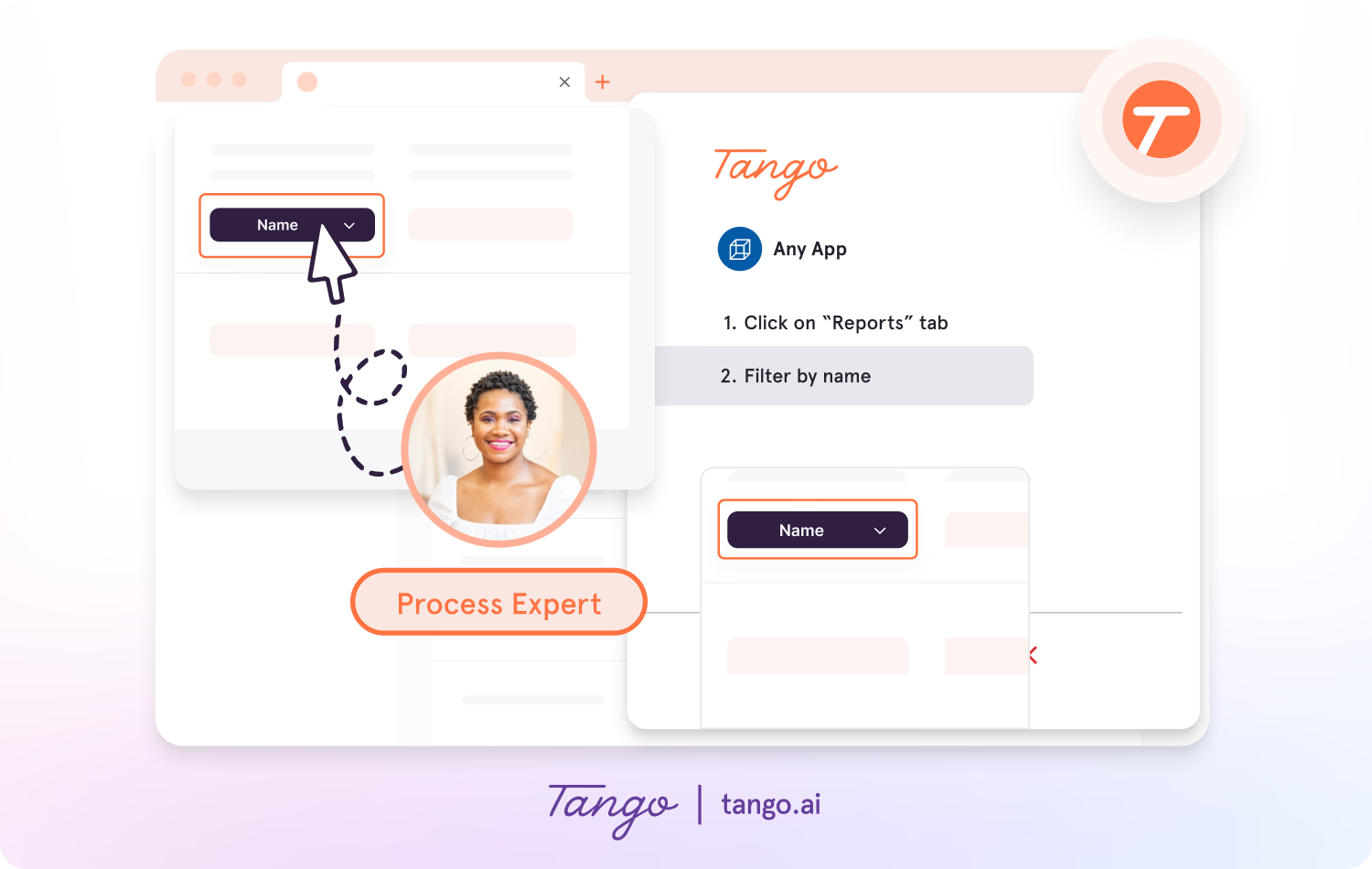
Document a process simply by doing it. Start a Tango capture, complete the workflow as you normally would, and Tango automatically turns your actions into a step-by-step guide.
With Tango, you can:
- Capture processes as you work: Document workflows in your browser or across desktop applications without stopping to write out every step.
- Create visual instructions automatically: Tango captures your actions and creates a guide with step-by-step screenshots and annotations.
- Get an AI-generated starting point: AI titles your guide and adds simple instructions for each step.
- Make every guide your own: Edit instructions, add context, and customize screenshots before sharing your SOP.
Keep SOPs organized and easy to find
Tango Workspaces give your team a shared home for creating, organizing, and accessing SOPs, so process knowledge stays organized as your library and team grow.
Tango helps you:
- Separate drafts from shared SOPs: New Workflows stay in Drafts while you're creating and refining them, then move to the Team Library when you share or export them.
- Organize and find SOPs quickly: Group related Workflows into folders and search your Workspace to get to the right process guidance.
- Collaborate in one place: Invite team members to view, edit, and share processes within the same Workspace.
- Control access as your library grows: Depending on your plan, use private folders, additional folder organization, and user groups to make relevant guidance available to the right people.
- Keep track of changes: Version history and, on Enterprise, audit logs give teams greater visibility into how documentation changes over time.
Deliver SOP guidance where work happens
Employees shouldn't have to leave their workflow and hunt for an SOP when they need help. Tango lets you turn documented processes into guidance people can access and follow while they're working.
You can:
- Share guidance directly: Send a Tango Workflow with a link so employees can get straight to the process they need.
- Embed SOPs in existing resources: Add Tango Workflows to the knowledge bases and other resources your team already uses.
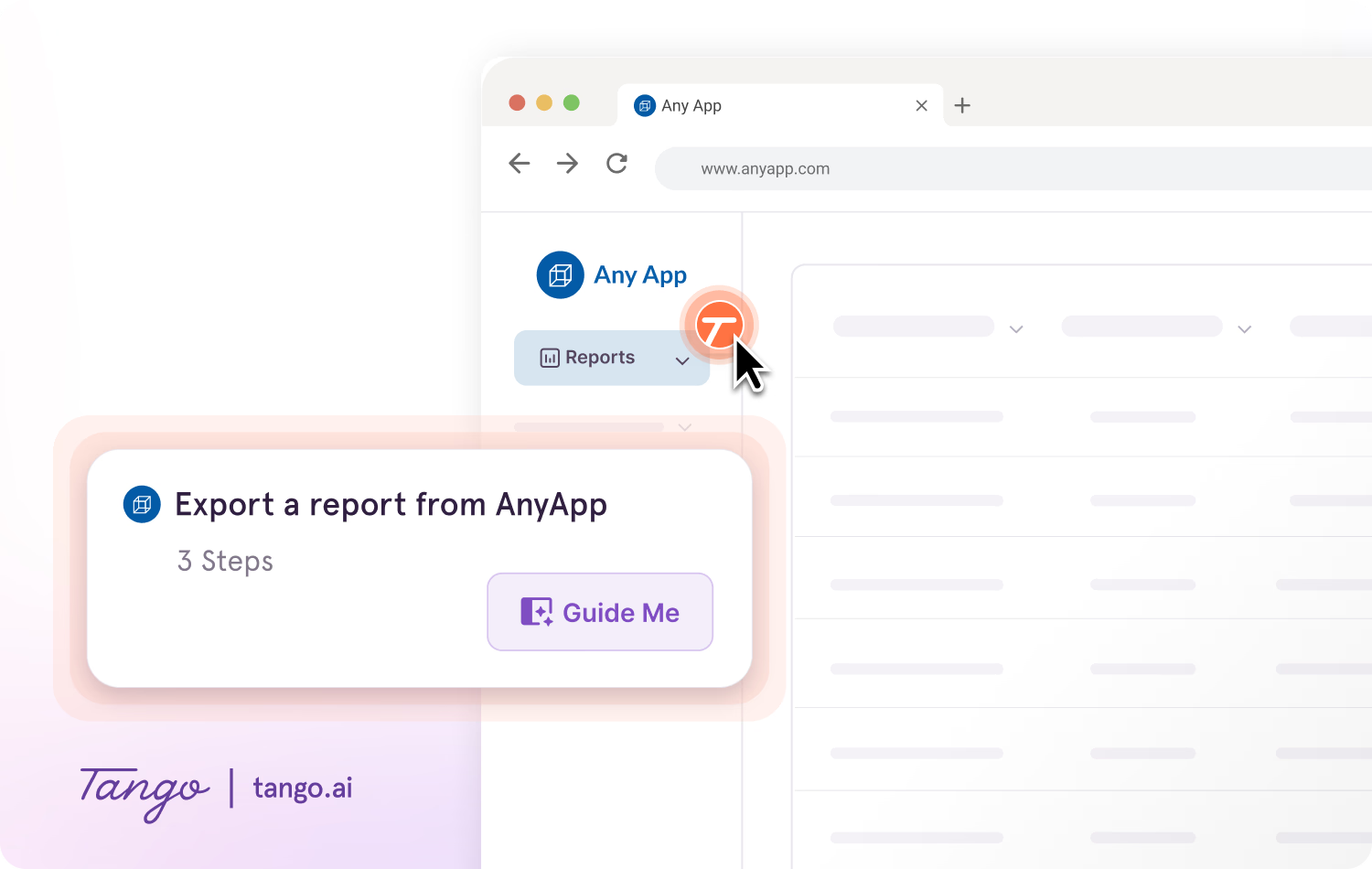
- Walk employees through every click: Guide Me turns a Workflow into step-by-step, on-screen guidance people can follow as they complete the process.
- Answer questions in the moment: Pins surface relevant guidance directly inside the applications where employees are working.
See how your SOPs are being used
Organizing SOPs is only useful if employees actually use them. Tango Analytics helps you understand how people engage with your process guidance and where they may need more support.
Use Tango Analytics to:
- Measure SOP adoption: See which Workflows are being used across teams and time periods.
- Track completion and drop-off: Understand whether employees are completing your guidance and where they stop.
- See where people get stuck: Identify specific steps that may need clearer instructions or additional support.
- Collect feedback: Let employees share feedback on specific steps as they work through real processes.
- Improve SOPs over time: Use adoption, completion, and feedback data to focus updates where they can make the biggest difference.



Next time someone asks, “how do I…?” Send a Tango.
Start capturing your first workflow today.