
Most teams have processes that work fine when the right person is around. The problem is that "the right person" can't always be around. So the same question gets asked again, the same steps get explained again, and the same work gets done manually when it could run on its own.
Tango solves the documentation half of that problem. You complete a workflow in your browser, and Tango captures every step automatically, producing a clean, shareable how-to guide. Claude Cowork solves the execution half. Feed that guide into Claude, and it can replay the workflow automatically in your browser.
Think of Tango as the system that records the workflow, and Claude Cowork as the system that performs it.
See Tango + Claude Cowork automate an SOP
Watch how Tango and Claude Cowork work together to turn a documented SOP into a reusable browser automation.
Here's exactly how to set it up, from capturing your first process to running it automatically on a schedule.
How to document a process with Tango
Before Claude Cowork can automate anything, you need a structured workflow it can follow. That's what Tango does.
1. Install the Tango extension
Open Google Chrome (this workflow requires Chrome specifically) and head to tango.ai. Click "Get the Extension, it's free" and then "Add to Chrome" to install it (or install it by this link fast). Create a free account, no credit card required, and click Start Tango to activate it.
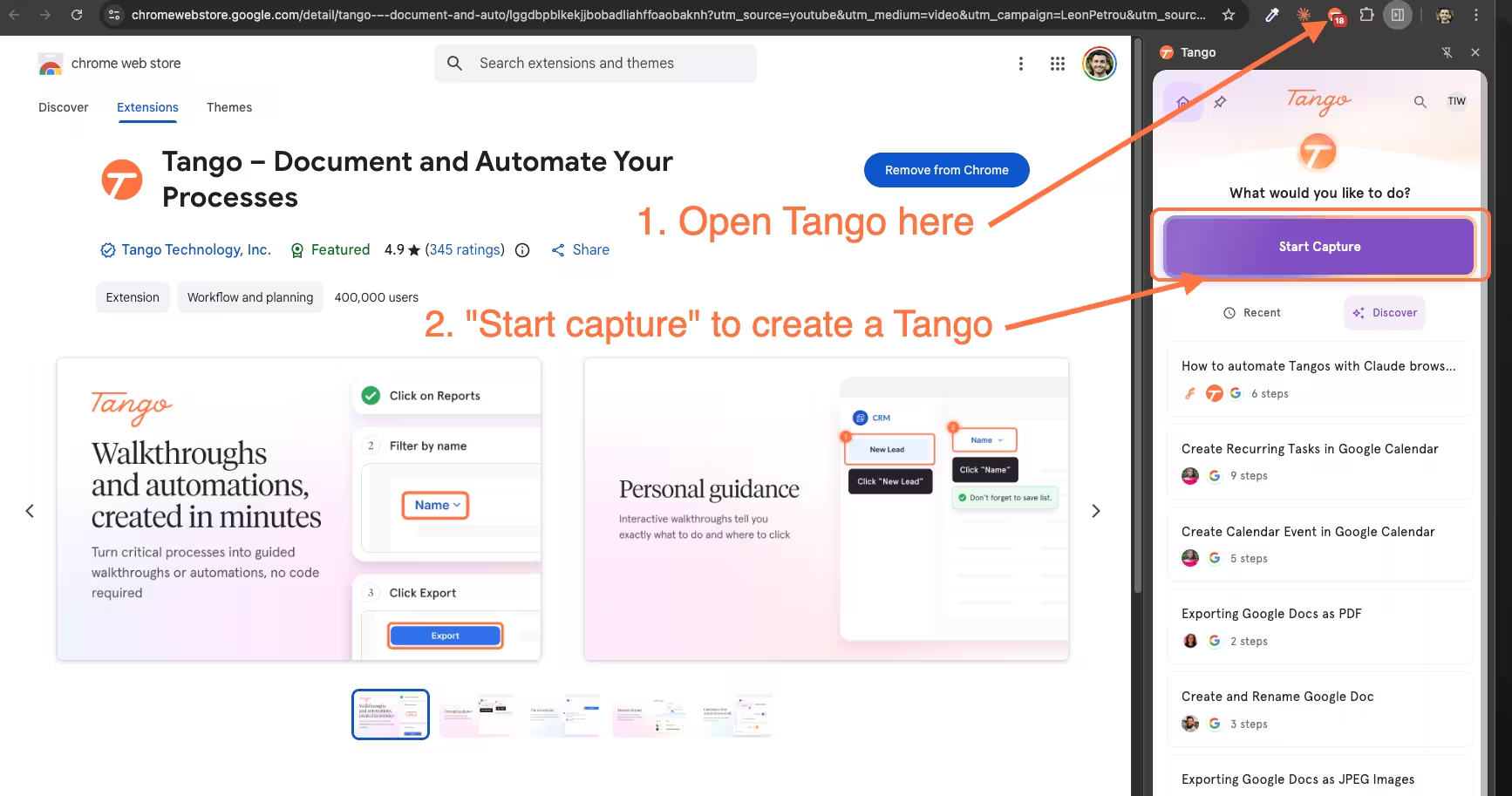
2. Capture your workflow
Navigate to the tool or system where your process lives, whether that's Salesforce, Workday, ServiceNow, or any other web-based app. Start recording in Tango and complete the process exactly as you normally would. Tango’s SOP creator captures every click and screen in real time.
3. Review and finalize your guide
Once you finish, Tango generates a step-by-step guide with screenshots and descriptions already formatted. Review the steps, make any edits you need, and clean up anything that doesn't need to be included.
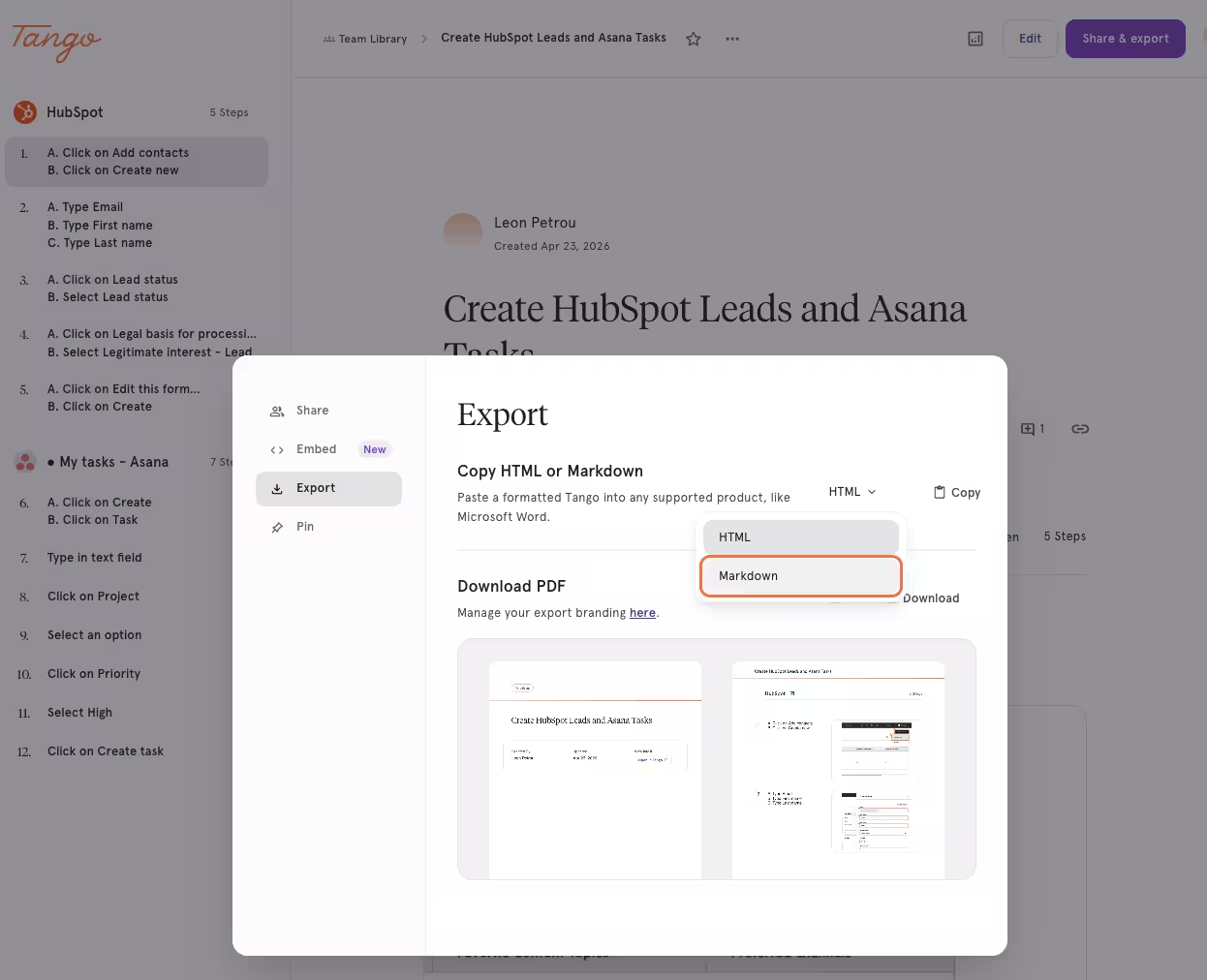
4. Export to Markdown
Open your completed Tango from your library. Click Share and export, then Export, then open the HTML dropdown and select Markdown. Click Copy to grab the full Markdown version of your guide. This is what you'll feed into Claude in the next section.
At this point, you no longer just have documentation. You have a structured workflow Claude Cowork can interpret and execute automatically.
How to use Claude Cowork to convert SOPs into browser automations
This is where the combination gets interesting. Claude Cowork can take your Tango Markdown export and convert it into a browser automation that runs the same steps using XPath selectors instead of screenshots. Then you can save it as a reusable shortcut and trigger it on demand or on a schedule.
1. Install the Claude browser extension
Install the Claude for Chrome extension from the Chrome Web Store. You'll run everything from this extension directly in your browser.
2. Load the conversion prompt
Copy the "Convert Tango SOP to XPath SOP" prompt provided in the Tango guide. This prompt instructs Claude to walk through your process live in the browser, identify each clickable element, derive a stable XPath selector for it, and output a new structured version of your SOP that can be replayed without screenshots.
Open the Claude extension on the tab where your automation should start, and paste the prompt into the input field.
.avif)
3. Paste your Tango Markdown below the prompt
Scroll to the "## SOP to convert" section at the bottom of the prompt and paste the Markdown you copied from Tango directly below it. Before running, make sure your model is set to the most capable option available. Then click run and wait for Claude to finish. This may take a few minutes.
4. Review and approve the plan
Claude will walk through the process live and generate a new XPath-based SOP. When prompted, approve the plan to let it continue. Once it finishes, copy the full XPath SOP response and paste it into a text file or notepad so you have it ready for the next step.
5. Create a reusable shortcut
In the Claude extension, go to the 3-dot menu, then Settings, then Shortcut, and click Create Shortcut. Give it a clear, relevant name so you can find it easily.
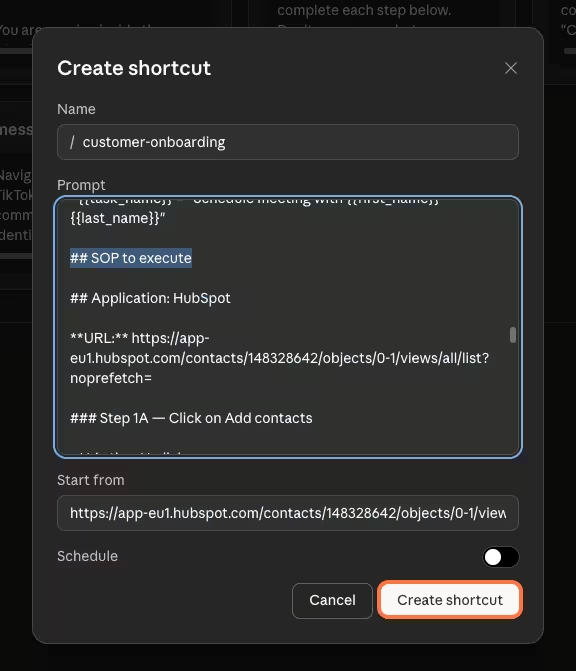
Copy the starting URL from the top of your XPath SOP and paste it into the Start from URL field.
Now copy the "Execute XPath SOP via JavaScript" prompt from the Tango guide and paste it into the Prompt section of the shortcut. This prompt tells Claude how to execute each step using JavaScript, including a retry ladder for elements that resist standard clicks.
6. Add your variables and SOP
Copy the variables from your text file and paste them under the ## Variables section of the prompt, filling in the real values for your use case. Then copy the full XPath SOP from your text file and paste it under ## SOP to execute.
7. Set a schedule (optional) and save
If you want this to run on a recurring basis, set a schedule before saving. Daily, weekly, monthly, whatever fits your workflow. Then click Create shortcut to save it.
8. Run it
Trigger the shortcut by typing a forward slash followed by your shortcut name. If you didn't pre-fill the variable values, Claude will ask for them before starting. Then watch it run.
Teams can use this workflow to automate repetitive browser tasks like CRM updates, onboarding workflows, support operations, internal approvals, and QA processes. Instead of manually repeating the same steps every day, they can document the process once in Tango and let Claude Cowork execute it automatically.
The bottom line
Combining Tango and Claude turns a process you've documented once into something that can execute itself, consistently, without pulling anyone away from other work. The documentation you create in Tango becomes the foundation the automation runs on. If you haven't captured your first process yet, try Tango for free and see how fast it goes.
FAQs
What is Claude Cowork?
Claude Cowork is a browser-based AI assistant that can execute workflows directly inside Chrome. In this workflow, it uses Tango SOPs to replay browser tasks automatically.
Can Claude Cowork automate browser workflows?
Yes. Claude Cowork can interact with browser-based applications by following structured workflows and XPath selectors generated from Tango SOPs.
Why export Tango guides as Markdown?
Markdown gives Claude a structured version of the workflow it can interpret and convert into executable browser automations.
What kinds of workflows work best with Tango + Claude Cowork?
This setup works best for repetitive browser-based tasks like onboarding, CRM updates, support operations, QA testing, and internal admin workflows.
Do I need coding experience to use this workflow?
No. Tango captures the workflow visually, and Claude Cowork handles the browser automation logic. The setup is mostly configuration and prompt-based.