How to create branching workflows with conditional steps

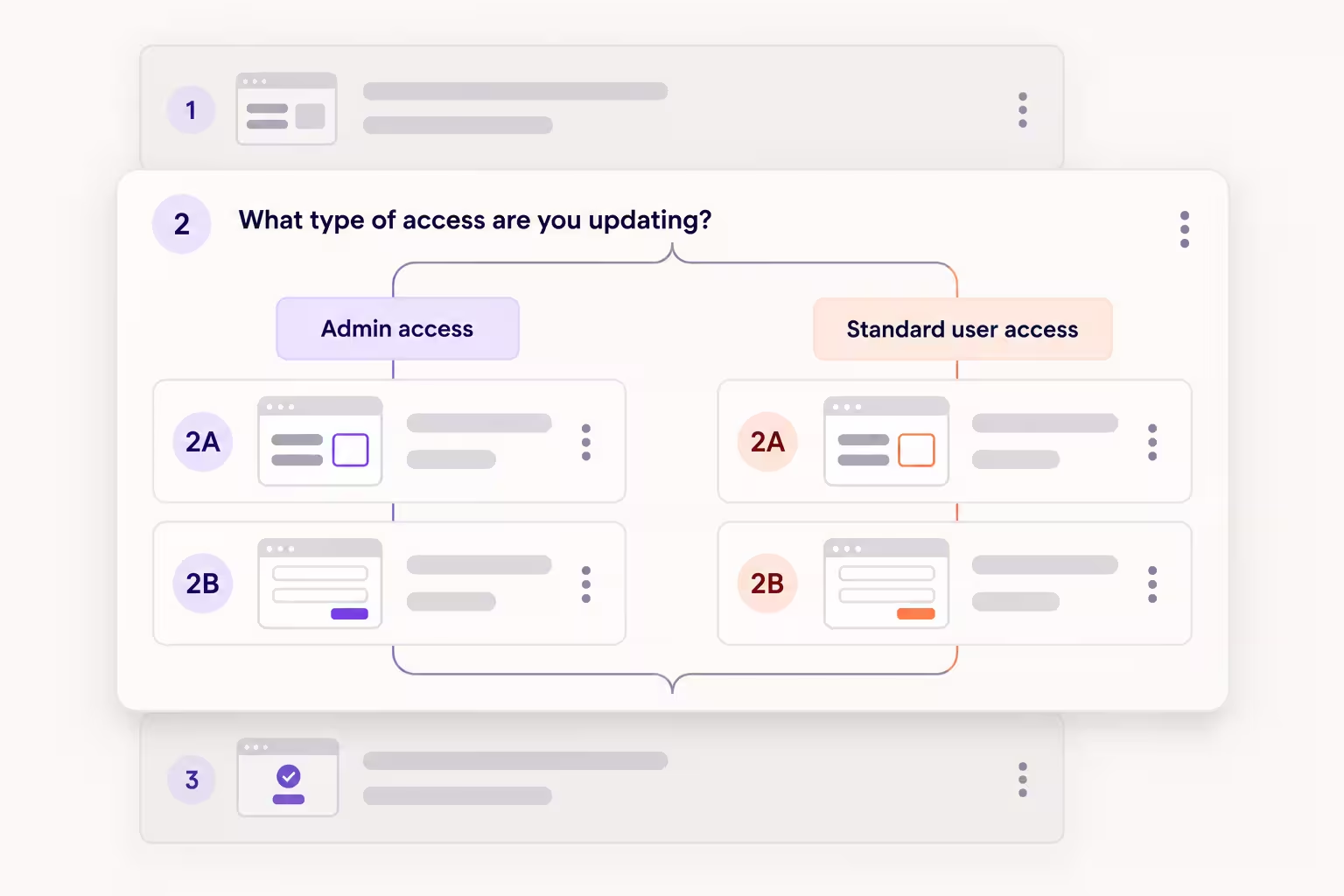
Most processes look straightforward on paper. Follow step one, then step two, then step three.
In practice, the right next step often depends on the situation. A new hire's onboarding process might change based on their role. A support workflow might take a different path depending on the issue. An approval might send someone forward or back for revisions.
That's where branching workflows come in. Instead of forcing every scenario into the same sequence or creating separate guides for every variation, branching lets you keep multiple paths in one process and guide people through the steps that apply to their situation.
What is a branching workflow?
A branching workflow is a process with multiple possible paths based on a decision, condition, or scenario. Instead of everyone following the same sequence of steps, the workflow branches at specific decision points so people can follow the path that applies to their situation. You may also hear terms like conditional branching or conditional logic used to describe workflows where what happens next depends on what happened earlier in the process.
How does conditional branching work?
At each decision point, a choice, condition, or outcome determines which steps come next.
Think of it as an if/then structure:
- If a request is approved, continue to the next stage.
- If a request needs changes, return it for revisions.
Each option leads to a different set of steps. Those paths can remain separate or come back together later in the workflow.
When should you use conditional branching?
Not every workflow needs multiple paths. If everyone follows the same steps from start to finish, a linear workflow is usually simpler.
Conditional branching is useful when the steps change based on a recurring decision, condition, or scenario, such as:
- Roles or responsibilities: Different people need different instructions based on their role, team, or permissions.
- Approvals or outcomes: The next steps depend on whether something is approved, rejected, or needs changes.
- Types of requests: A process changes depending on the issue, request, or task.
- Tools or systems: People complete the same process differently depending on the software or system they're using.
- Existing conditions: The steps depend on what's already true, such as whether a record already exists.
- Exceptions: Certain steps only apply in specific situations.
A good rule of thumb: if you're maintaining multiple versions of nearly the same guide or regularly adding instructions like “if this applies, skip to step 8,” the process may be a good candidate for branching.
See Workflow Branching in action
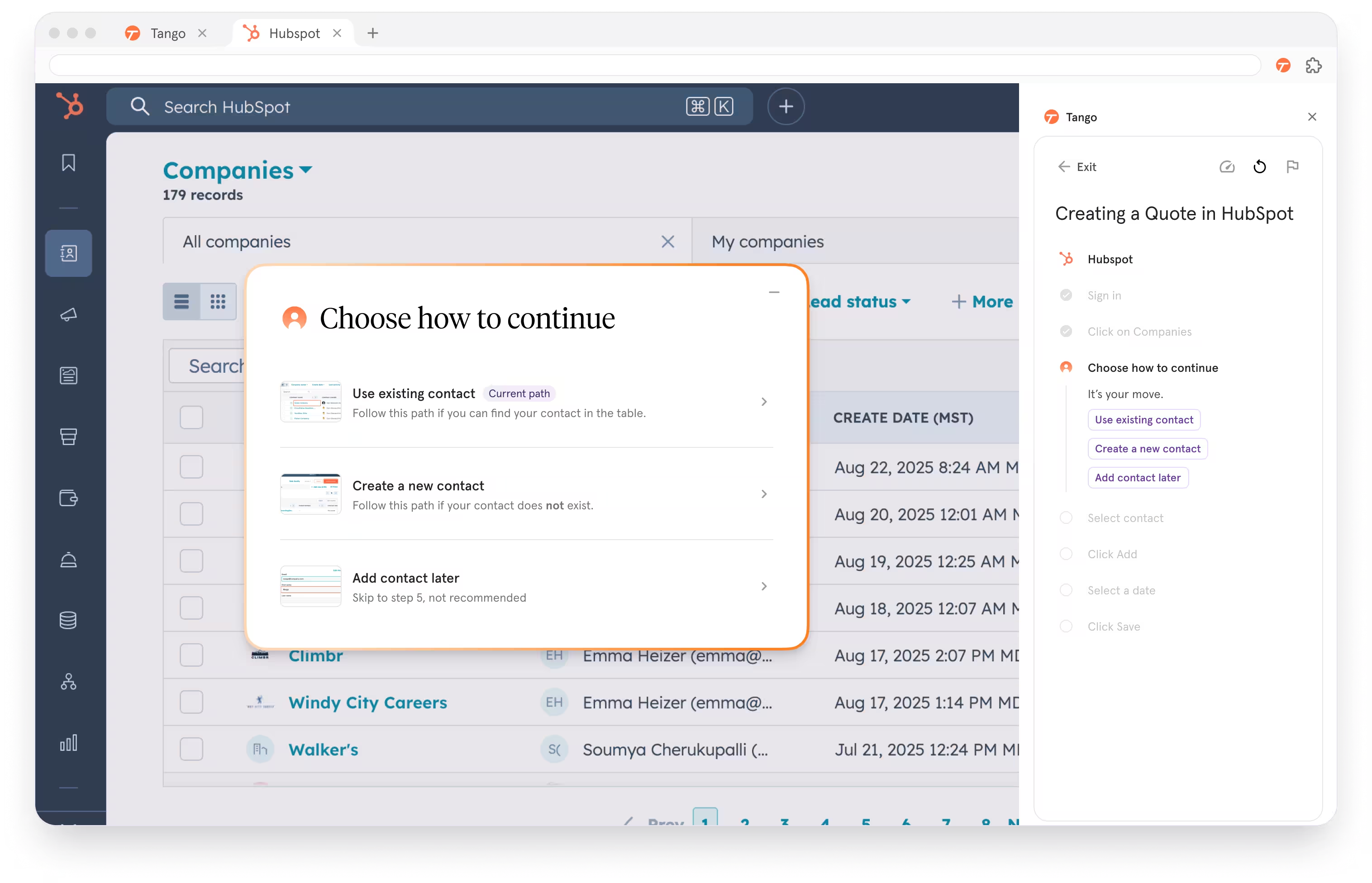
Tango's Workflow Branching lets you capture multiple paths in one workflow. When someone follows the workflow with Guide Me, they can choose the path that matches their situation.
How to create a branching workflow with Tango
Tango turns the processes you perform on screen into polished step-by-step guides. Click through the process once, and Tango automatically documents each step with screenshots, highlights, and descriptions.
1. Capture the first path
Start a Tango capture and click through one path of the process from beginning to end. Once you've captured the first path, open the workflow in the Tango editor.
2. Add a decision point
Find the step where the process can go in more than one direction. Add a decision point where the paths diverge. Make each option clear enough that someone following the workflow can tell which path applies to them.
3. Capture the additional path
Select the branch where you want to add another path, then capture the steps for that variation. Each branch can have its own steps, instructions, and screenshots.
4. Organize your branches
Review the workflow and make sure each step appears under the correct path. If needed, move or reorganize steps in the editor.
5. Publish and guide people through the right path
Once each path is complete, publish the workflow. With Guide Me, people see the available options at each decision point, choose the path that matches their situation, and follow the relevant steps.
For more detailed setup instructions, see how branching works in Tango.
Workflow Branching is available on Tango's Enterprise plan.
Interested in Workflow Branching? Book a demo
Frequently asked questions
What is a branching SOP?
A branching SOP is a standard operating procedure with multiple possible paths based on a decision, condition, or scenario. Instead of requiring everyone to follow the same sequence, decision points direct people to the steps that apply to their situation.
What is conditional logic in a workflow?
Conditional logic determines which path or steps apply based on a choice, condition, or outcome in a workflow. It is often expressed as if/then logic, where one condition leads to one set of steps and another leads to a different path.
What is the difference between a branching workflow and a decision tree?
A branching workflow guides someone through the steps of a process, while a decision tree primarily maps decisions and possible outcomes. A decision tree helps determine what should happen next, while a branching workflow connects those decisions to the steps needed to complete the process.
What software supports branching SOPs with conditional steps?
Tango supports branching SOPs with conditional steps through its Workflow Branching feature. Teams can capture multiple paths in one workflow and add decision points where the process diverges. With Guide Me, people choose the path that matches their situation and follow the relevant steps. Workflow Branching is available on Tango's Enterprise plan.



Next time someone asks, “how do I…?” Send a Tango.
Start capturing your first workflow today.